Record a voiceover
Move the playhead to where you want to start, open the Sound tab (⌘5) and click Record a voiceover. After a 3-second countdown the edit plays and you talk over it. Press Space to stop.
A voiceover is handy when you recorded silently, or when you want to explain something better after editing.
- Move the playhead to where you want to start talking.
- Open the Sound tab (⌘5) and click Record a voiceover. Or press ⌘K and choose Record voiceover.
- After a 3-second countdown, the edit plays from the playhead. Talk over it.
- Press Space or click Stop. Press esc to throw the take away.
Slides wait while you talk over them, and → moves on from one sooner, as when you record yourself.
To record over one part, click its microphone button in Parts. The recording starts at that part's beginning. If you keep talking at its end, its last frame holds while you finish.
The take lands on the timeline, exactly where you heard it. It's part of the Sound row, and has its own Voiceover lane with All tracks on.
Fix a take
Click a take on the timeline. You can:
- Drag it to move it, or drag its ends to trim it. Trimming the start keeps the rest where you heard it, even across a page.
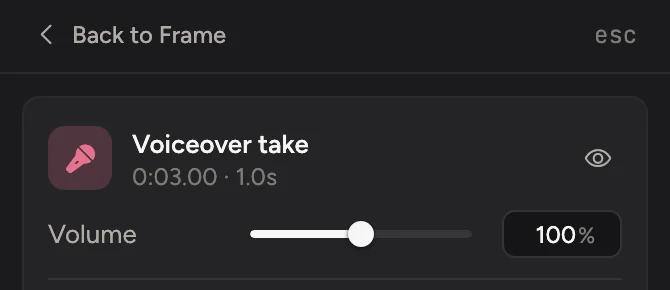
- Set its Volume, or Mute it.
- Click Move to playhead to put it where the playhead is.
- Delete it, and record that bit again.
New recordings follow the clips and slides you spoke over. Cutting or shortening a part removes the matching speech, reordering carries it along, and changing its speed keeps the speech synchronized without changing its pitch. You can extend a trimmed edge to restore the original samples, including after saving and reopening.
To hear the video without your voiceover, mute it in the mixer: click the mixer button next to the name of the timeline's Sound row. Music dips under the voiceover when Softer when someone talks is on in Music.
If the microphone stops while you record (unplugged, or switched to another), the recording bar says The microphone stopped. If it comes back, the time it missed is silent in the take and the rest stays in time, and Cinemac tells you how long it cut out for.
The first time you record a voiceover, macOS asks to allow the microphone. If it says Cinemac can't use the microphone, allow it in System Settings › Privacy & Security › Microphone.