Projects
Choose Projects… from the menu bar icon or press ⌘P to see every project. Your edits save automatically a second after each change.
See your projects
Choose Projects… from the menu bar icon, or press ⌘P. Your recent projects show as tiles, newest first.
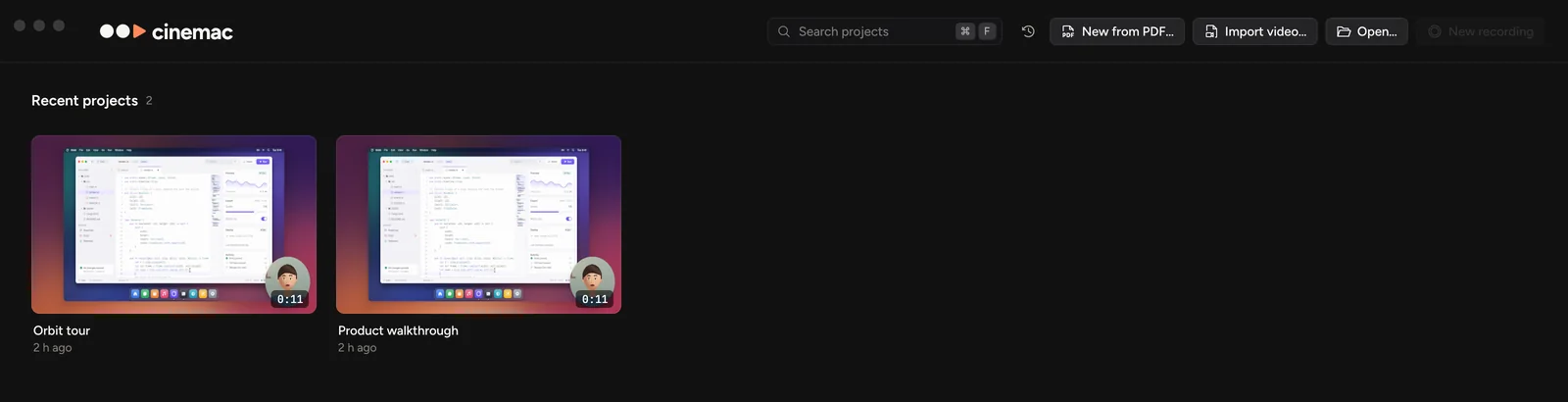
- Type in Search projects to find one by name.
- Click a tile to open it.
- Open… opens a project or recording that isn't in the list.
- Import video… makes a project from an MP4 or MOV. See Bring in an existing video.
- Blank project (⇧⌘N) starts a project with nothing recorded, for slides or videos you add yourself. See Start a blank project.
You can also drop a project or a video file on the window.
Saving
Cinemac saves your edits a second after each change. The project name at the top of the editor says Saved or Edited. Press ⌘S to save straight away. File › Save As… saves a copy under another name.
Turn autosave off in Editor settings (⌘, in the editor) if you prefer to save yourself.
Rename a project
Click the project name at the top of the editor and type a new one.
Right-click a project
| Choice | What it does |
|---|---|
| Open | Opens it in the editor. |
| Copy as ZIP | Puts the project, with its recording, on the clipboard as a ZIP. Paste it into Finder, Mail or a chat. It opens on any Mac with Cinemac. |
| Apply preset | Gives the project the look of a saved preset. Its crop is kept. |
| Export raw recording files… | Saves the original screen, camera and sound files. |
| Move to Trash… | Moves the project to the Trash. Finder's Put Back restores it. |
Select several tiles with ⌘-click to do the same to all of them.
Where projects are kept
New recordings and their projects go in your recordings folder, Movies › Cinemac unless you change it in Settings › Storage. A project is a single .cinemac item. Double-click one in Finder to open it. See Where your files live.