Help / Record
Record an iPhone or iPad
Connect the iPhone or iPad with a cable, unlock it and tap Trust. Choose iPhone in the recorder, pick the device and click Start recording.
Record a device
- Connect the iPhone or iPad to your Mac with a cable.
- Unlock it. If it asks, tap Trust, then enter the passcode.
- In the recorder, choose iPhone. Your device shows in the list, marked connected by cable. Click it.
- Choose your Mac's microphone and camera if you want them, then click Start recording.
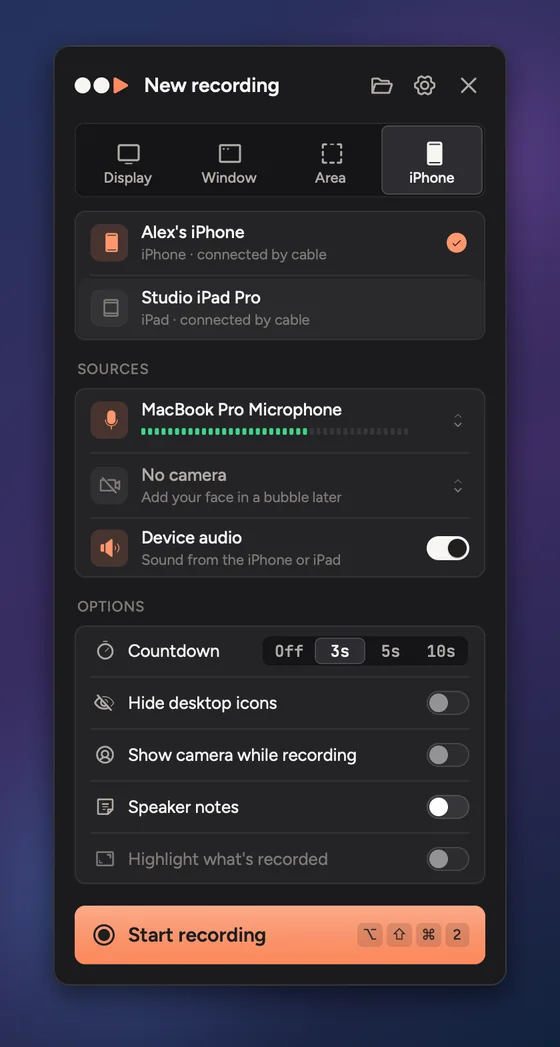
If no device shows, the recorder says Looking for devices… with the three steps above. Try another cable or port, and make sure the device is unlocked.
Sound
Turn on Device audio to record the sound the iPhone or iPad plays. Your Mac's microphone records your voice at the same time, on its own track.
Turning the device
Turn the device between portrait and landscape while you record if you need to. The video turns with it smoothly and plays upright.
In the editor
Device recordings are framed in a matching phone or tablet automatically. Change the design and colour in the Frame tab (⌘6), under Device frame. See Device frames.
Updated 22 October 2026Something unclear? Tell us