How AI narration works
Open the Narrator tab (⌘4), choose AI voice (an ElevenLabs voice) or AI presenter (a HeyGen avatar in the camera bubble), write your lines at the right moments and click Speak all. It uses your own account with that service.
AI narration is for videos where you'd rather type than talk. Record the screen without a microphone, then write the script. Cinemac speaks each line at the moment you placed it, and the export includes it.
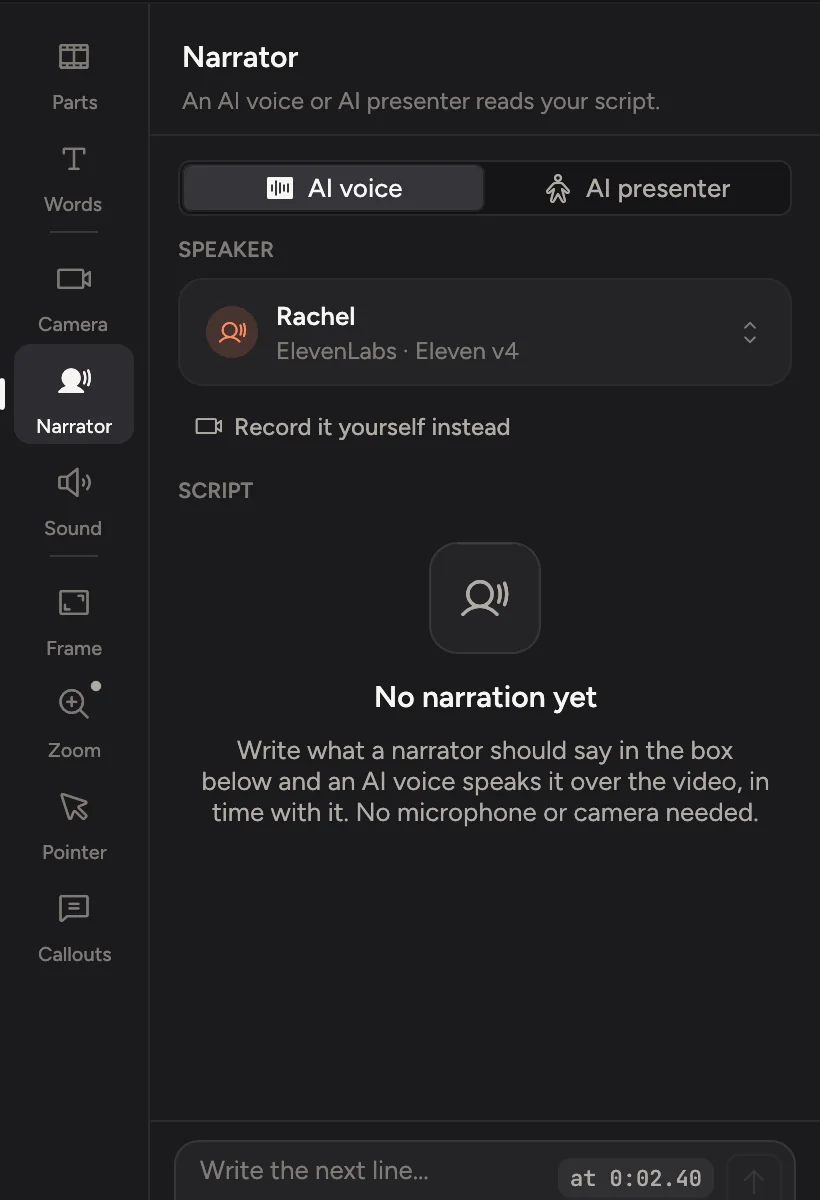
Two ways to narrate
Choose one per project with the switch at the top of the Narrator tab.
| AI voice | AI presenter | |
|---|---|---|
| What viewers get | A voice over your video | An avatar that speaks in the camera bubble |
| Service | ElevenLabs | HeyGen |
| Voice | An ElevenLabs voice, or a clone of your own | A HeyGen voice, or a clone of your own |
| Good for | Tutorials, product tours, quick updates | Sales videos, launches, a face without filming one |
You can switch later. Your script stays the same, and each way remembers its own voice.
What you need
- An account with the service you use, and its API key. See Connect ElevenLabs and HeyGen.
- Nothing else: no microphone and no camera.
How it fits together
- Write the script: add lines at moments in the video.
- Click Speak all above the script to have every line spoken. With the AI presenter on, the same button says Present all and makes the avatar's clips too.
- Play the video to hear it. Narration is in every export.
Speech is billed to your own account with ElevenLabs or HeyGen, not by Cinemac. A line is only spoken again when you change its words, its voice or its model, so you never pay twice for the same line.
Your keys and your data
Your keys are kept in the macOS Keychain. Cinemac sends your script lines only to the service that speaks them, and nothing is sent until you click Speak all or a line's speak button. Your recording itself never leaves your Mac. More in Privacy.