Cut by editing words
Open the Words tab (⌘2) on the right, select the words you don't want and press ⌫. The video is cut to match. Remove fillers and Tighten pauses clean up a whole recording in one click.
Cinemac turns what you say into text. Each word is linked to its moment in the video, so cutting a word cuts the video there too.
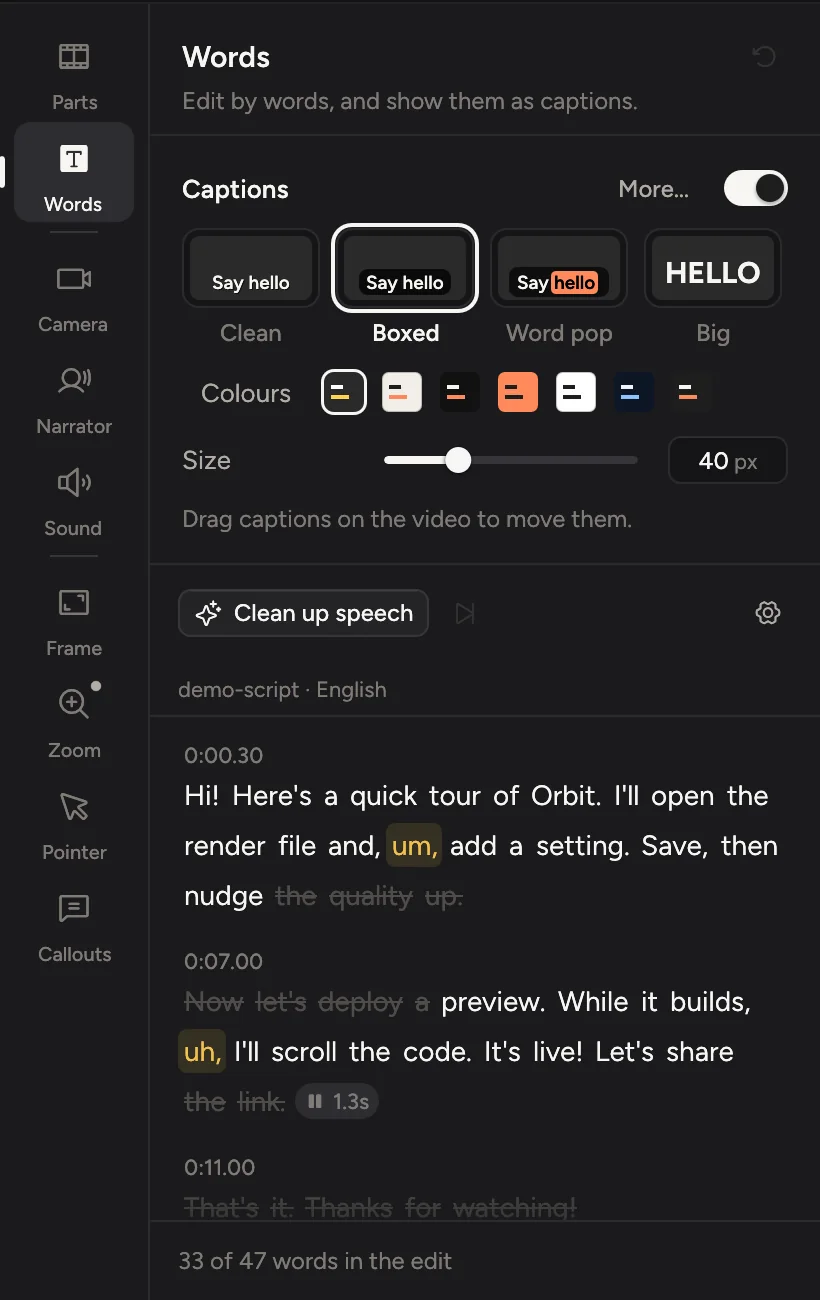
Open the transcript
Click Words in the tabs on the right, or press ⌘2. Captions sit at the top of the tab and the transcript below them. If the recording has no transcript yet, click Transcribe. See Transcribe your recording.
Cut words
- Click a word to move the playhead there. Drag across words, or ⇧-click, to select several.
- Press ⌫, or click Cut at the bottom of the tab.
The words are struck through and the video skips them. The count at the bottom shows how many words are still in the edit.
Bring words back
Select struck-through words and click Restore the cut words. Or right-click and choose Restore. Cuts made on the timeline show as struck-through words too.
Remove filler words
Click Remove fillers at the top. Cinemac cuts hesitations like "um", "uh" and "erm" in the transcript's language. The button shows how many it found.
Words that are sometimes filler and sometimes not, like "you know" or "I mean", are tinted so you can check them. They are never cut automatically. Select one and press ⌫ if you want it gone. Turn on Count "like" as a filler to treat "like" as a filler too.
Shorten long pauses
Click Tighten pauses to shorten every pause of a second or more to a breath. Pauses show in the text as a small badge with their length.
Hide words from captions only
To keep a word in the video but leave it out of the captions, select it and press ⌘⌫. Use this for a stumble you'd rather not see written down.
Go further
- Fix restarts finds lines you said twice and keeps the last one.
- Correct a word the recogniser got wrong, without changing the video.
- Every cut is one undo step. Press ⌘Z to undo.