Help / Start here
Your first video in 5 minutes
Pick what to record, press Start recording, do your demo, press Stop. Cinemac opens the editor with zooms, a background and clean sound already done. Press ⌘E to export.
1. Start a new recording
- Click the Cinemac icon in the menu bar and choose New Recording….
- At the top of the recorder, choose what to record: Display, Window, Area or iPhone.
- Under Sources, pick your microphone and camera. The bar under the microphone moves when it hears you.
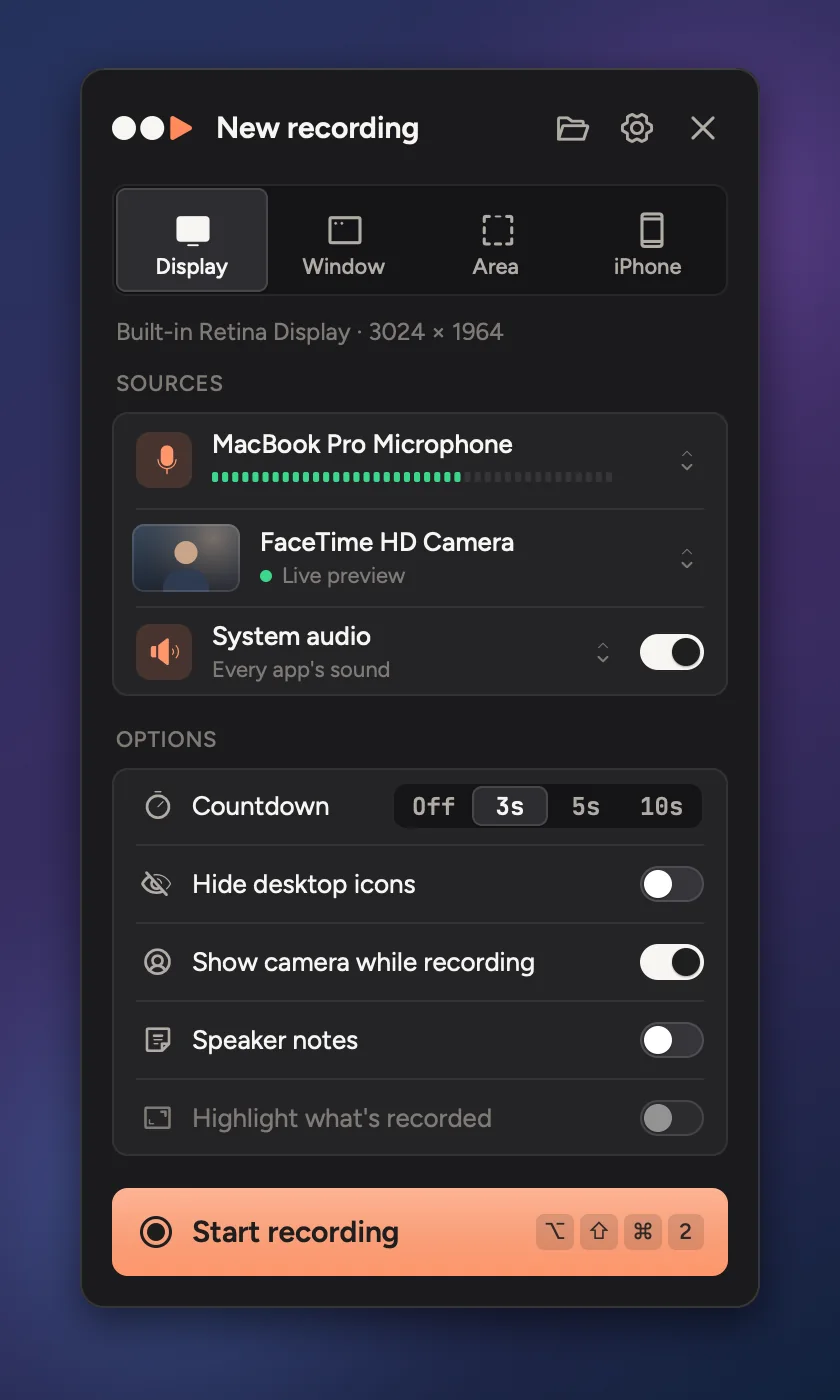
- 1Choose what to record
- 2Microphone, camera and system audio
- 3Start recording
2. Record
- Click Start recording, or press ↩. For a window or an area, click the window or drag over the area first.
- A short countdown runs. Click it to start straight away.
- Do your demo. Talk as you go and click the things you want people to see. Cinemac zooms in on each click later.
- Click Stop in the recording bar, or press ⌥⇧⌘2.
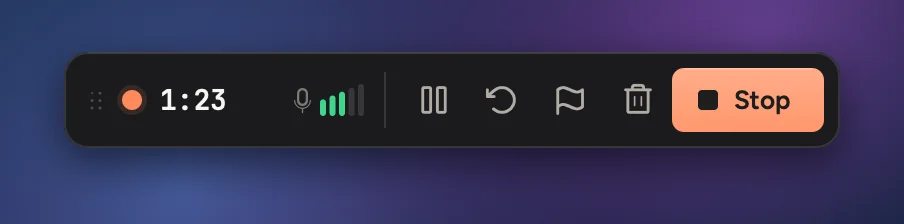
The recording bar, the countdown and the camera bubble are never in your video.
3. Look at the edit
Cinemac finishes the recording and opens the editor. Press Space to play. Your video already has:
- a zoom on every click, easing in and out,
- a smooth cursor in place of the jumpy one,
- a background, rounded corners and a soft shadow,
- your voice levelled to a comfortable volume.
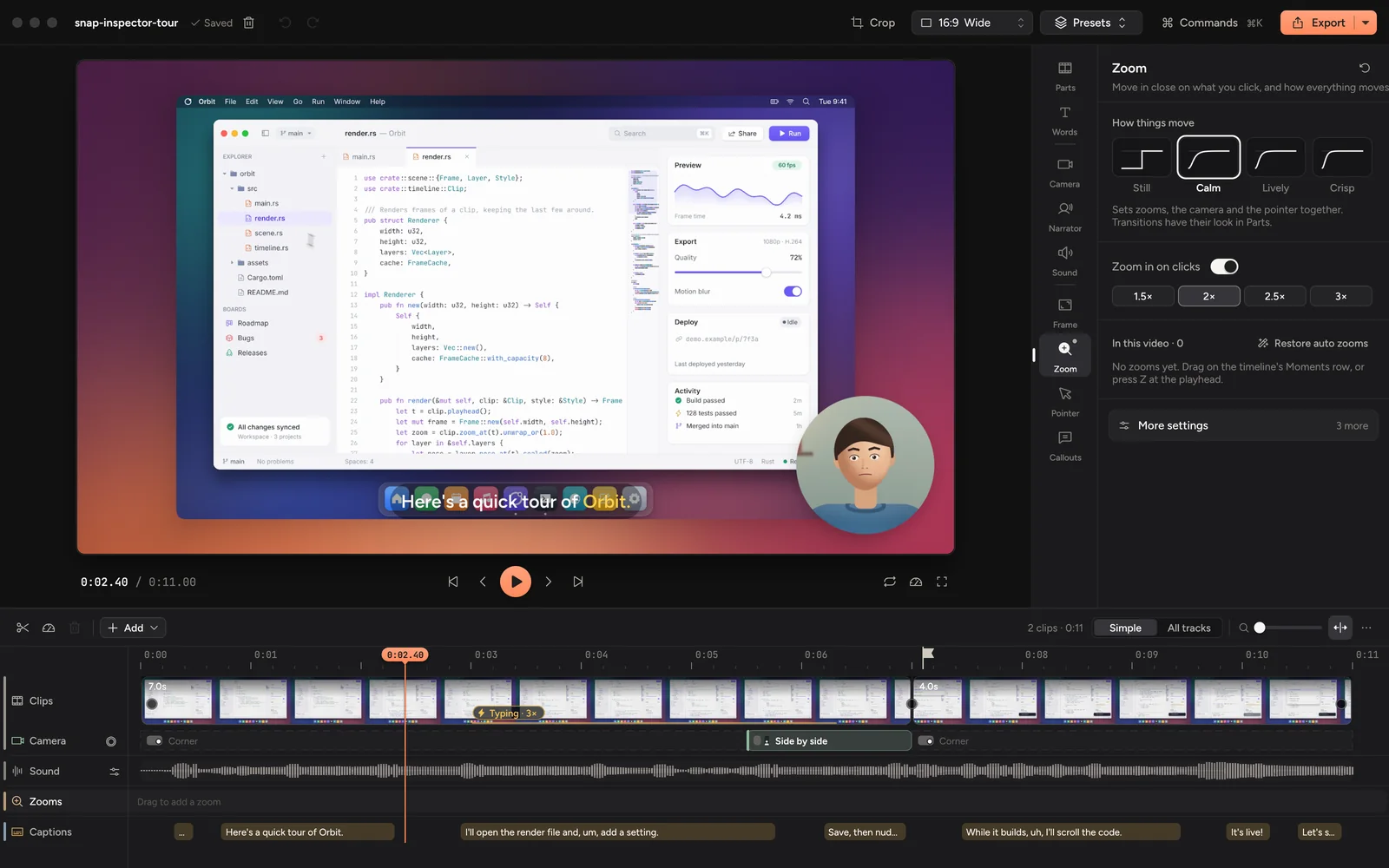
Want to change something? A tour of the editor shows where everything is.
4. Export
- Click Export at the top right, or press ⌘E.
- Leave the settings as they are for a good MP4, or pick a different Quality and Resolution.
- Click Export. When it's done, click Reveal in Finder, or Copy to paste the video into Slack, Mail or anywhere else.
More in Export a video.
Tip
Cinemac saves your project as you go. Find it again in Projects… from the menu bar icon.
Updated 21 October 2026Something unclear? Tell us