Hide private details
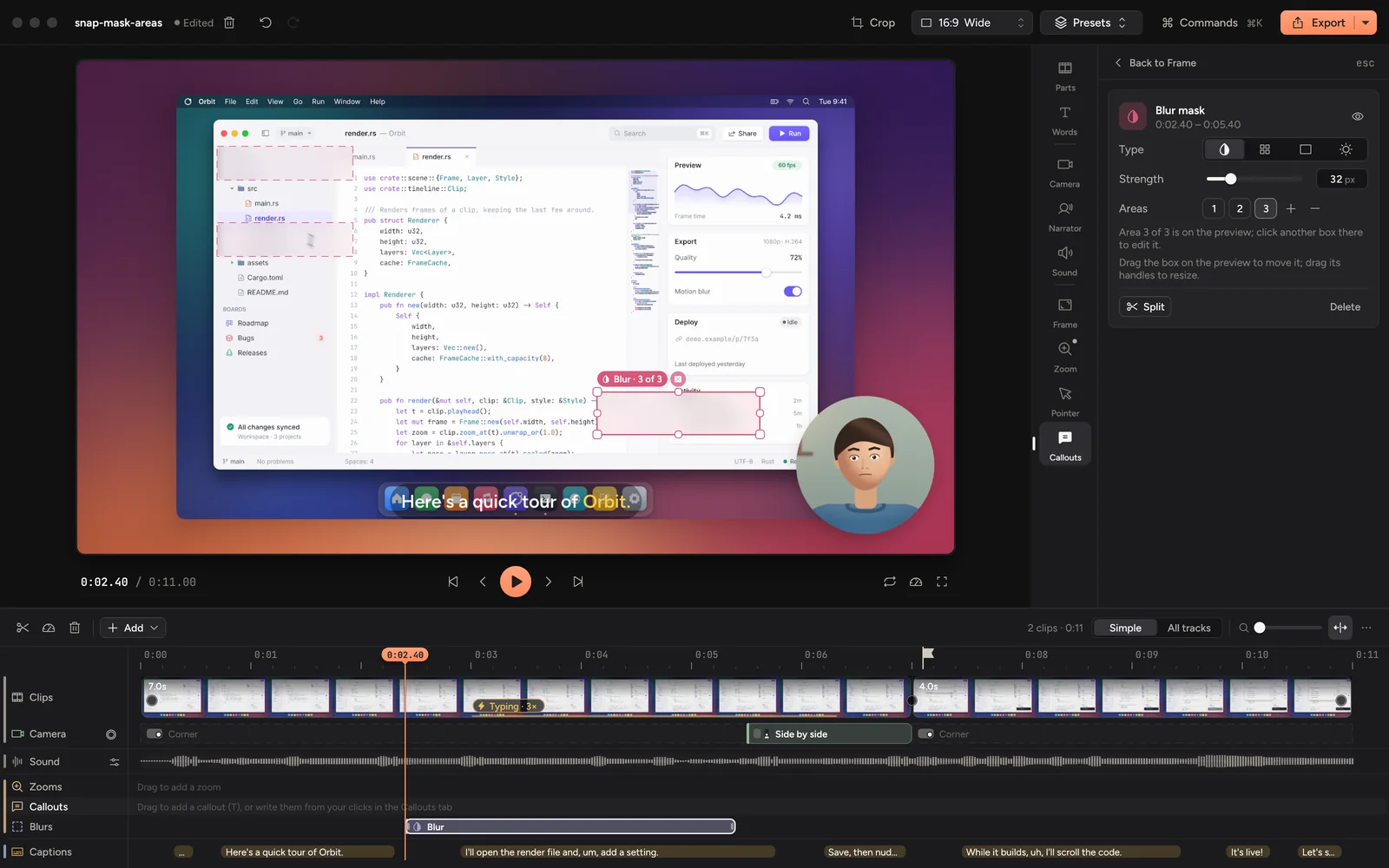
Open the Callouts tab (⌘9) and click Blur to add one at the playhead, then drag the box on the preview over what to hide. Pick Blur, Pixelate or Redact on its card. Highlight dims everything else instead.
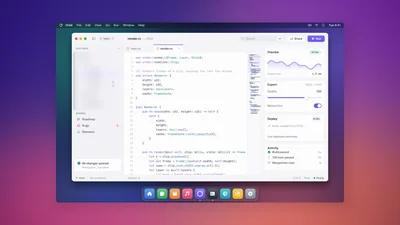
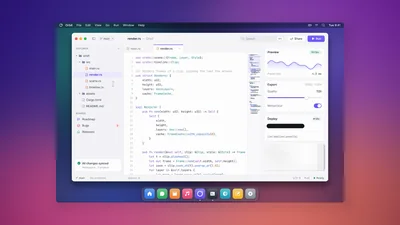
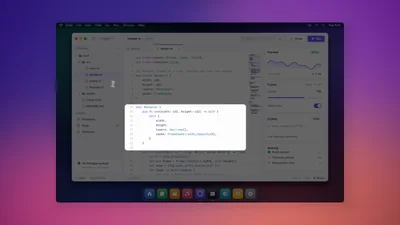
Hide something
- Move the playhead to where the detail shows. Open the Callouts tab (⌘9) and click Blur under Add at the playhead. You can also pick Blur or hide in the timeline's Add menu, or choose Edit › Add blur mask. Drag its ends on the timeline's Blurs row to cover the right stretch.
- Drag the box on the preview over what to hide. Drag its handles to resize it.
- On its card on the right, pick a Type: - Blur softens it. Strength sets how much. - Pixelate turns it into squares. Cell size sets how big. - Redact covers it with a solid colour.
Masks stay on the right part of the screen when it zooms.
Masks fade in a little before their stretch starts and out a little after it ends, so a detail never flashes up. Set this under Callouts › More settings › Highlights and blurs › Blur fade.
Highlight something
Click Highlight in the Callouts tab, or choose Highlight in the timeline's Add menu. The box stays bright and the rest of the screen dims. Dim sets how dark the rest goes. Apply to all highlights gives every highlight the same dim.
Cover several areas
One mask can cover several boxes. Hold ⌥ and drag on the preview to draw another, or click Add an area in the mask's settings. Use Remove the selected area to delete one.
Turn masks off or on
Turn off the switch at the top of a mask's card to keep it but skip it. Disable all masks and Remove all masks are in the Commands list (⌘K).
Redact masks use one colour, set under Callouts › More settings › Highlights and blurs › Black-out. Corners and Highlight fade are there too.