The recording bar
While you record, a small bar floats on the screen. It shows the time and your microphone level, and has buttons to pause, restart, add a marker, discard and stop. It's never in your video.
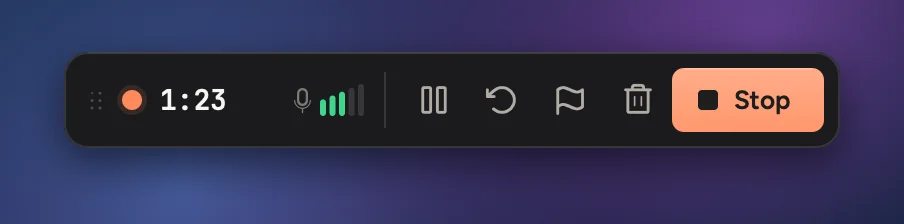
- 1Time
- 2Microphone level
- 3Pause
- 4Restart this take
- 5Add marker
- 6Discard
- 7Stop
The buttons
| Button | What it does | Shortcut |
|---|---|---|
| Pause | Pauses the recording. Click Resume to carry on. Nothing is recorded while paused. | ⌥⇧⌘P |
| Restart this take | Throws away what you just recorded and counts down again. | ⌥⇧⌘R |
| Add marker | Drops a flag on the timeline, so you can find this moment when editing. | ⌥⇧⌘M |
| Discard | Throws the whole recording away. It asks first. | ⌥⇧⌘⌫ |
| Stop | Stops and opens the editor. | ⌥⇧⌘2 |
These shortcuts work in any app while you record. Change them in Settings › Shortcuts.
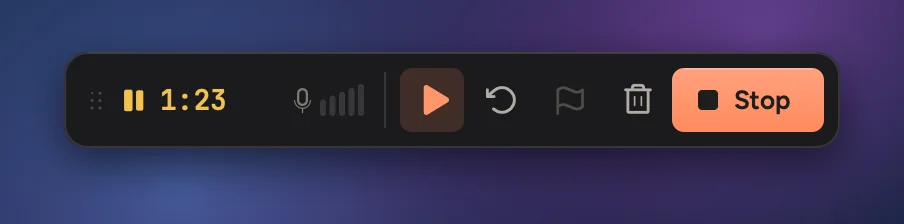
Move the bar
Drag the bar by its left edge. It snaps to the edges of the screen and stays where you left it next time.
Throw a recording away
Click Discard, then Discard again to confirm. Click Keep if you changed your mind. A discarded recording can't be brought back.

After you stop
Cinemac shows Finishing recording while it saves the video and sound and creates the project. Then the editor opens.
If your Mac restarts or Cinemac quits during a recording, you lose at most the last second. Cinemac finishes the recording the next time it opens. See Recover a recording.