Timeline basics
Click the timeline to move the playhead. Press C to split a clip, drag a clip's edge to trim it, and press X to delete the clip under the playhead. Undo with ⌘Z.
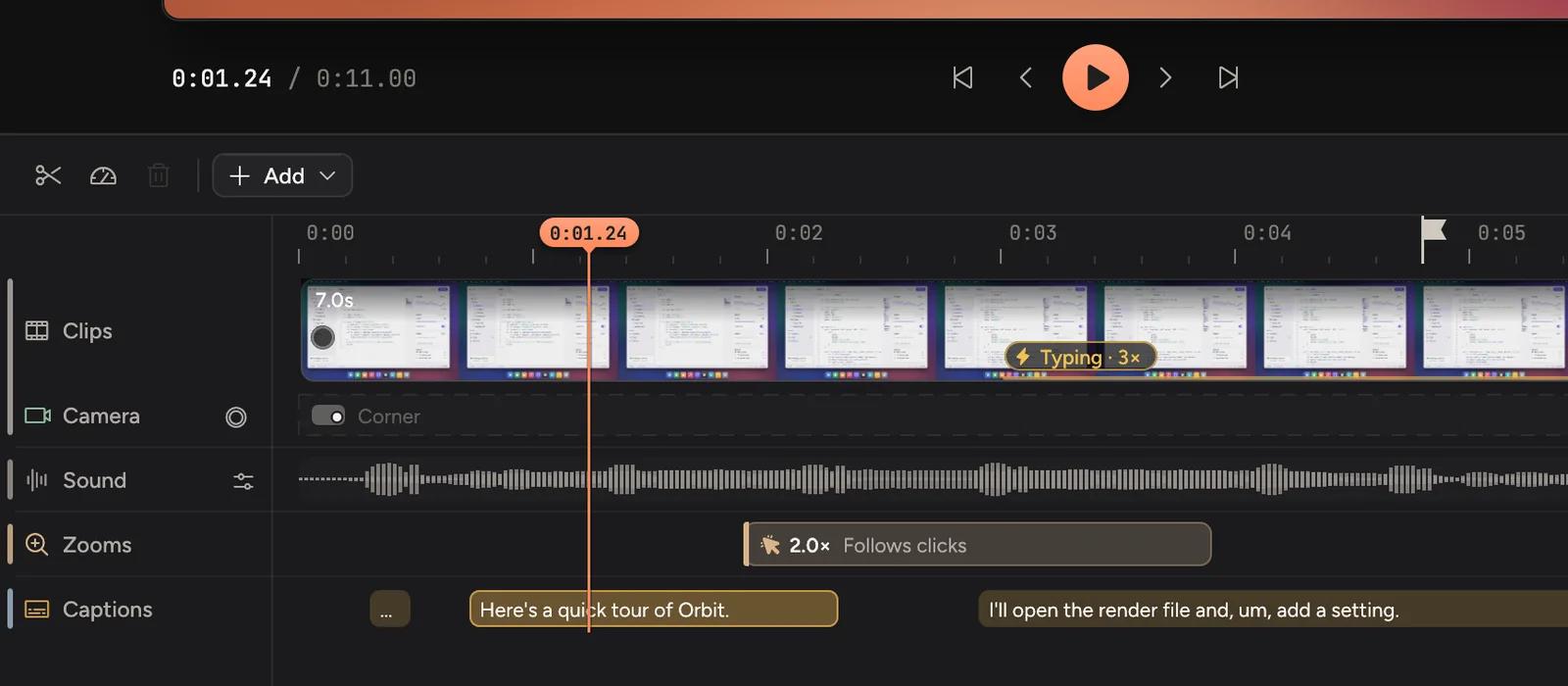
The rows
In the Simple view, the timeline shows a row for each kind of thing your video has, in four groups from top to bottom:
| Group | Rows |
|---|---|
| Video | Clips (your recording and slides) and Camera (camera changes and takes you recorded later). The chip at each join sets its transition. |
| Sound | One Sound row with everything you hear, mixed. Click the mixer button next to its name to mute or turn down each sound. |
| Moments | Zooms, plus Callouts, Loupe and Blurs once you add them. |
| Words | Captions, Narration and Shortcuts, the keys you pressed. |
Rows with nothing in them stay hidden, except Zooms, until you open their tab.
Want a separate lane for every kind of thing, such as Microphone and System audio? Click All tracks in the bar, or press ⌘K and choose Show every track. Cinemac remembers your choice.
The tab open on the right steers the timeline: its rows stay bright and the others fade. Drag on an empty part of a row to add that kind of item there, such as a zoom on Zooms.
Add things
Click Add in the bar for everything you can put on the timeline at the playhead:
| Group | Choices |
|---|---|
| Motion | Zoom, Callout, Callouts for my clicks, Loupe |
| Camera | Record yourself, Present a deck (slides from a PDF), Change the camera here |
| Frame | Blur or hide, Highlight |
| Video | Slide, Hold frame, Marker |
Tidy up, at the bottom of the menu, clears the small things that make an edit twitchy, in one step you can undo:
- Camera layouts that show for less than 1.5 seconds go, so the camera doesn't flip there and straight back. The layout around them carries on.
- Zooms shorter than 0.8 seconds go, since they would only lurch in and straight out.
Lengths count what plays, so speed and cuts are taken into account. Layouts and zooms you turned off stay. Tidy up is also in the command bar (⌘K, type "tidy") and on a camera block's menu.
Less common tools, such as Snapping, the Blade tool, Volume lines and in and out marks, are under More (⋯) at the end of the bar.
Play and move around
- Press Space to play and pause. Click anywhere on the ruler to move the playhead there.
- Press ← or → to step one frame, or hold ⇧ to jump one second.
- Press ↑ or ↓ to jump to the previous or next cut.
- Scrubbing never waits for the video to decode. You see the nearest frame at once and the exact frame a moment later.
- Pinch on the trackpad, or press ⌘+ and ⌘-, to zoom the timeline. ⌘0 fits the whole video.
Split and delete
- Move the playhead to where you want to cut.
- Press C to split the clip there.
- Click the part you don't want and press ⌫.
The clips after it move up to close the gap. Press X to delete the clip under the playhead without selecting it first.
To cut out a stretch in one go, press I at its start and O at its end, then press X.
Hold a frame
Need more time to explain something? Move the playhead there and press H, or choose Hold frame in the Add menu. The picture stops at that moment while the video waits, then carries on. Click the hold to set Holds for, in seconds. Narration and your camera can carry on over a hold.
Trim
Drag the left or right edge of a clip to shorten it. Drag it back out to bring the footage back.
Edges snap to the playhead, other clips and markers. Hold ⌘ while dragging to move freely, or press N to turn snapping off.
Change speed
- Click a clip to select it.
- Press S, or click Speed in the bar, and pick a speed such as 2×.
Voices keep their natural pitch when sped up. For long stretches of typing, Cinemac suggests a speed-up for you: click Typing on the clip to apply it.
Select
- Click a clip, zoom, callout or caption to select it. Its settings open on the right. Clicking a zoom, camera change or callout also opens its tab.
- ⇧-click to add to the selection. ⌘A selects every clip. esc clears it.
- Right-click anything on the timeline for more options.
Undo anything
Press ⌘Z to undo and ⇧⌘Z to redo. Each drag or click is one step. Cinemac never deletes your recording: cuts and trims only hide parts of it, so you can always bring them back.