Share a link
Open Export and click Share link, or press ⌘K and type share. Give it a title, an optional button, and click Share link. The link is copied, ready to paste. Share links come with a Cinemac subscription.
A share link is a web page with your video on it. Send the link instead of a big file. When you change the video, update the link and everyone sees the new one at the same address.
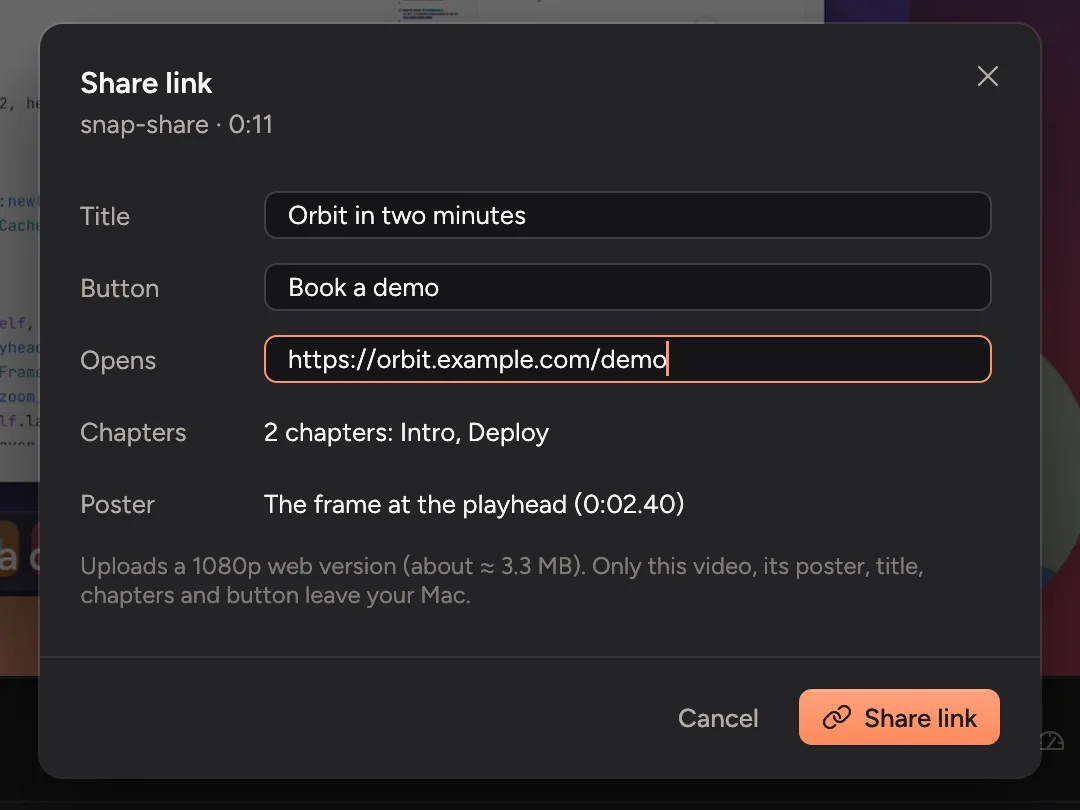
Share
- In the editor, click Export and then Share link. Or press ⌘K and choose Share link….
- Fill in what viewers see:
| Row | What it does |
|---|---|
| Title | The heading above the video. |
| Button | Optional. A button under the video and when it ends, such as Book a demo. Opens is the address it goes to. |
| Chapters | Made from the markers on your timeline, titled by their labels. Viewers can jump between them. |
| Poster | The picture shown before someone presses play: the frame at the playhead. |
- Click Share link. Cinemac makes a 1080p web version and uploads it. When it's done, the link is copied, so you can paste it straight into an email or a chat. Open in browser shows the page.
Only that video, its poster, title, chapters and button leave your Mac. Your project and recordings stay where they are.
Share links come with a Cinemac subscription. If you're signed out, the sheet says Sign in to share, with a button to Settings › Account.
Update the video
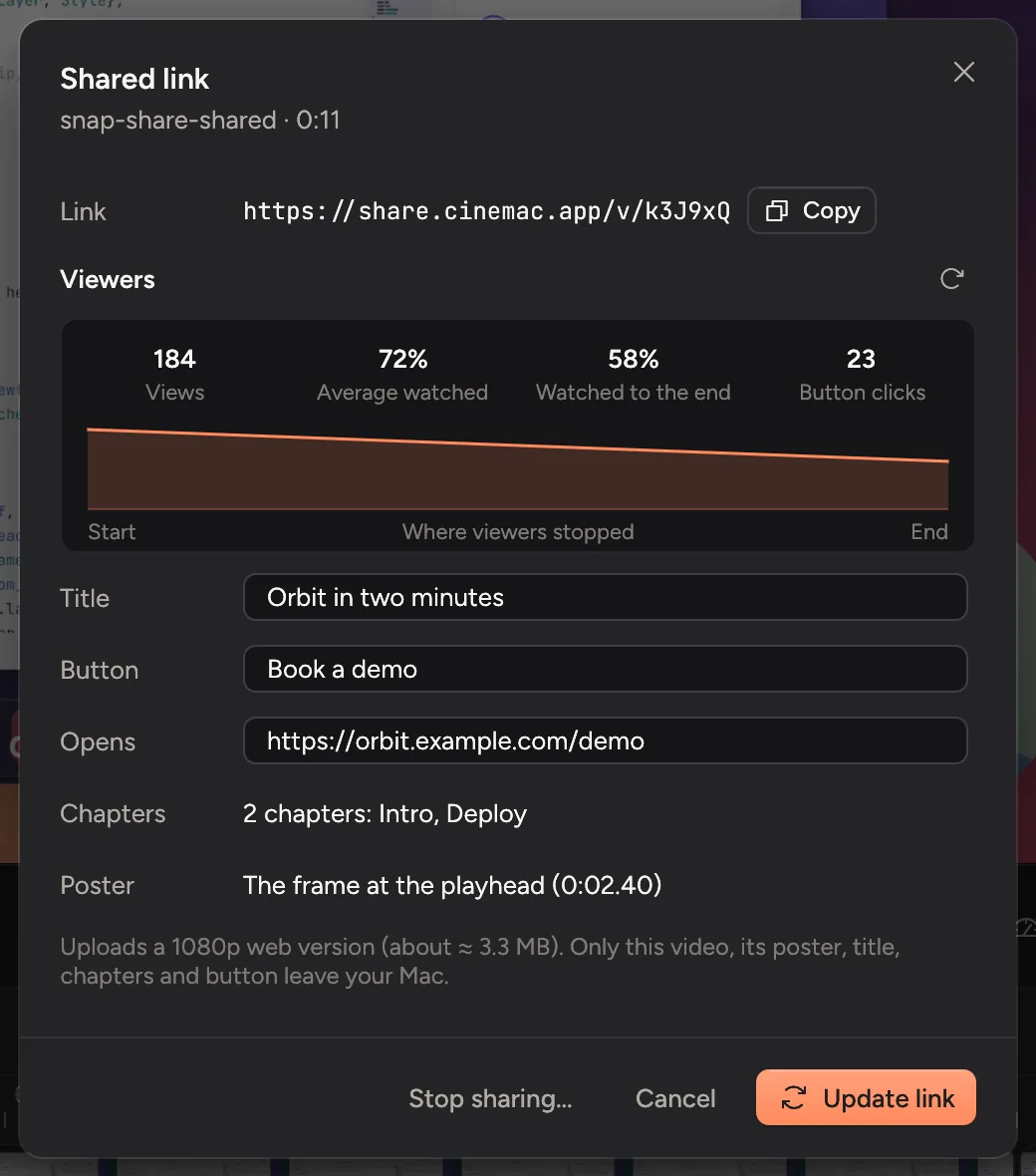
Changed something? Open Share link again. The sheet now says Shared link, shows the Link with Copy, and has Update link. The new video replaces the old one at the same address.
See who watched
A shared video's sheet shows Viewers:
- Views: how many times people pressed play.
- Average watched and Watched to the end: how much of the video people saw.
- Button clicks: how many people clicked your button.
- Where viewers stopped: a line from start to end, so you can see where people drop off.
Click the refresh arrow for the latest numbers.
Stop sharing
In the sheet, click Stop sharing… and confirm. The link stops working for everyone, and its video and viewer numbers are deleted from the server. Your project isn't touched.
All your links
Settings › Sharing lists Your links, with Copy link, Open and Stop sharing for each, and how much of your storage they use.
If your subscription ends, your links keep playing for a while, then pause. Subscribe again and they play at once, at the same addresses.
Developers can send links to a share server of their own: click Use your own server… in Settings › Sharing.