Help / Edit
Find any setting
Press ⌘K and type the setting's name, such as shadow. Pick it and Cinemac opens its tab, opens More settings if it's there, and makes it glow.
The right side of the editor has nine tabs. You don't have to remember which one holds a setting.
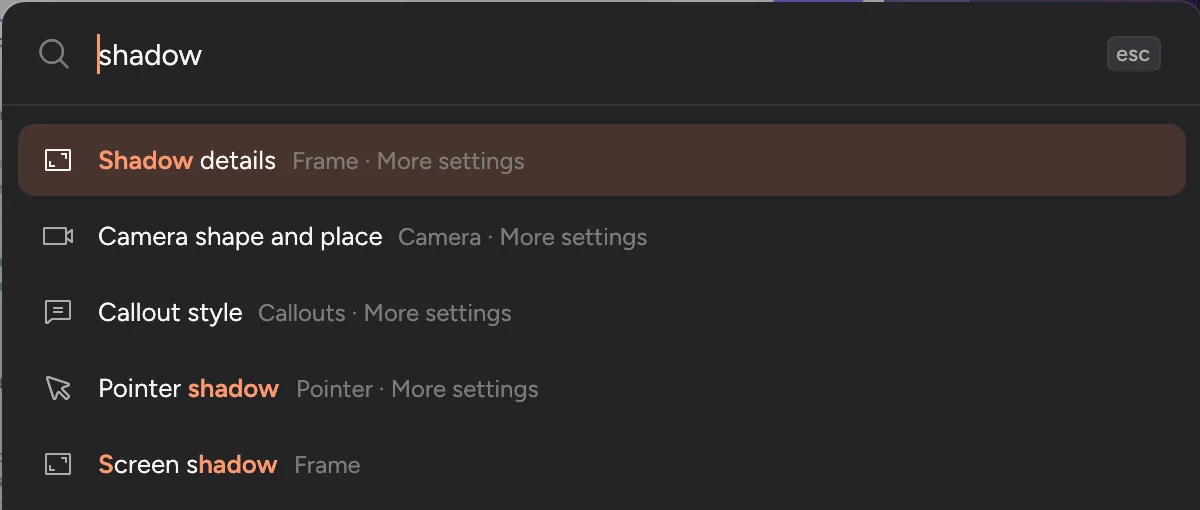
Search by name
- Press ⌘K.
- Type part of the name, such as shadow, music or corners.
- Pick the setting.
Cinemac opens the right tab, opens More settings or the caption style page if the setting lives there, and scrolls to it. The setting glows for a moment so you can spot it.
The same list finds actions too. See Commands.
Tabs and their keys
| Key | Tab | Key | Tab |
|---|---|---|---|
| ⌘1 | Parts | ⌘6 | Frame |
| ⌘2 | Words | ⌘7 | Zoom |
| ⌘3 | Camera | ⌘8 | Pointer |
| ⌘4 | Narrator | ⌘9 | Callouts |
| ⌘5 | Sound |
Each tab opens with the settings most people need. The rest are under More settings at the bottom.
See what you changed
- The More settings header counts the sections you've changed from a new project's look, such as 2 changed.
- A tab you've changed shows a small dot in the rail.
- The reset arrow at the top right of a tab puts every setting on that tab back to its default. ⌘Z undoes it.
Try before you pick
Hover a background, a frame look or a pointer style and the preview shows it straight away. Move away and it goes back. Click to keep it.
Updated 22 October 2026Something unclear? Tell us