Help / Frame
Size for each platform
Pick a shape from the aspect menu at the top of the editor, such as 16:9 Wide or 9:16 Vertical. Cinemac reframes the video, and your zooms keep following the action.
- Click the aspect menu at the top of the editor (it shows 16:9 Wide to begin with).
- Pick a shape. The preview changes straight away.
| Aspect | Good for |
|---|---|
| 16:9 Wide | YouTube, websites, presentations, most screens. |
| 1:1 Square | LinkedIn and X feeds. |
| 4:5 Social | Instagram and LinkedIn feeds, where taller takes more room. |
| 9:16 Vertical | Reels, TikTok and YouTube Shorts. |
| 4:3 Standard and 3:4 Portrait | Older displays, slides and documents. |
| Auto | The recording's own shape, with padding on every side. |
Vertical videos
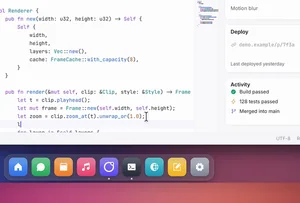
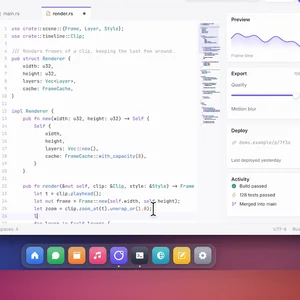
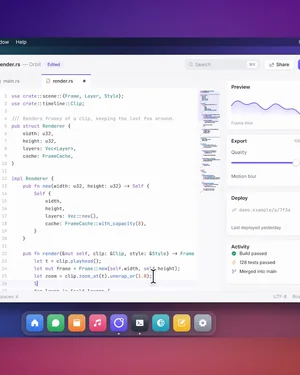
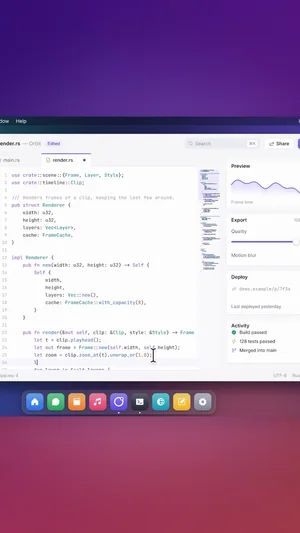
A wide recording is small in a tall frame. Cinemac helps in two ways:
- Your zooms still follow your clicks, so the important part stays big.
- Fill the frame, in Zoom › More settings, zooms in far enough that no empty bands show.
For a vertical video, it also helps to record a narrow window or area. See Tips for a clean recording.
Size in pixels
The export's Resolution sets the final size: 1080p means the shorter side is 1080 pixels, so a 9:16 video at 1080p is 1080 × 1920.
Updated 22 October 2026Something unclear? Tell us