Zoom in on what you click
Cinemac adds a zoom on every click when you record. In the Zoom tab (⌘7) you pick how things move and how close zooms get. On the timeline's Zooms row you can add, move or remove any zoom.
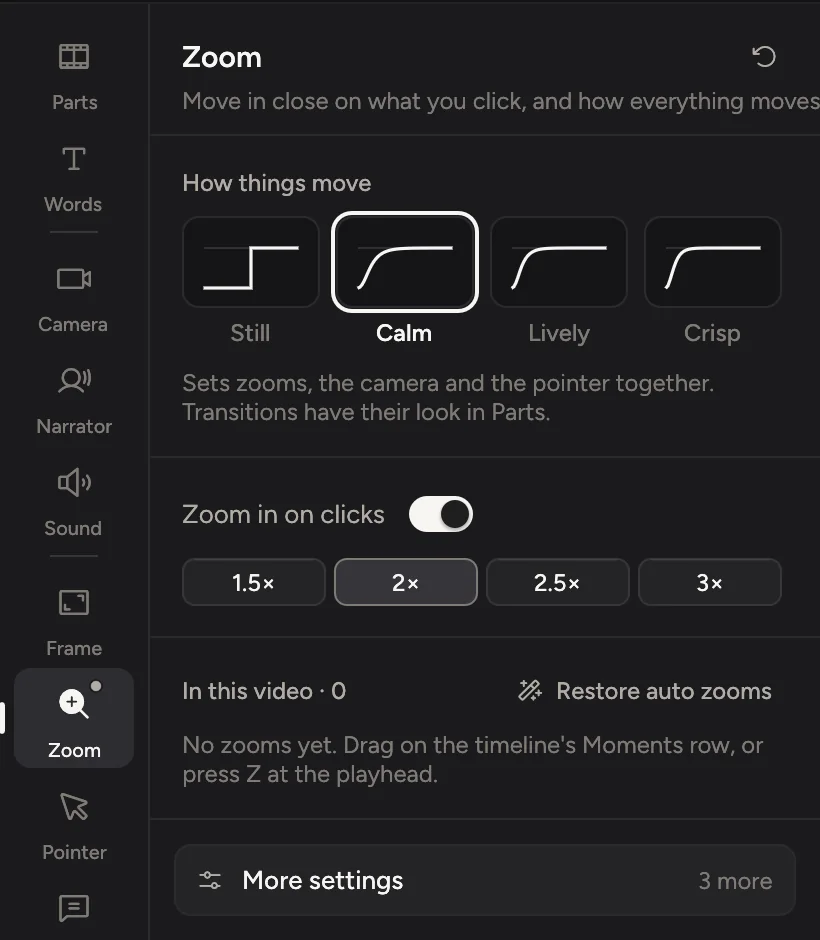
How things move
Click Zoom in the tabs on the right, or press ⌘7. At the top, How things move sets the feel of the whole video in one click: zooms, the camera and the pointer move together. How clips join is set separately, under Transitions in Parts.
| Feel | Best for |
|---|---|
| Still | Cuts, no animation. |
| Calm | Slow and soft. Suits product demos. |
| Lively | Springy, with a little bounce. Launch videos. |
| Crisp | Fast and exact. Step-by-step tutorials. |
If you tune one part on its own later, such as the pointer's movement, the note under the feels says so. Pick a feel again to bring everything back in line.
How close zooms get
Zoom in on clicks makes a zoom wherever you click. With it on, pick a level: 1.5×, 2×, 2.5× or 3×. 2× is twice as close.
If some zooms use another level, a button such as Use 2× for every zoom (4) brings them all in line in one step.
Turn Zoom in on clicks off if you'd rather place every zoom yourself.
Add a zoom
- Drag on an empty part of the Zooms row on the timeline, from where the zoom should start to where it should end.
- Or move the playhead and press Z.
- Or click Add in the timeline bar and pick Zoom.
A new zoom follows your clicks in that stretch. On a slide or a deck's page, it zooms into a spot of the page that you pick. See Zoom into a slide.
Change one zoom
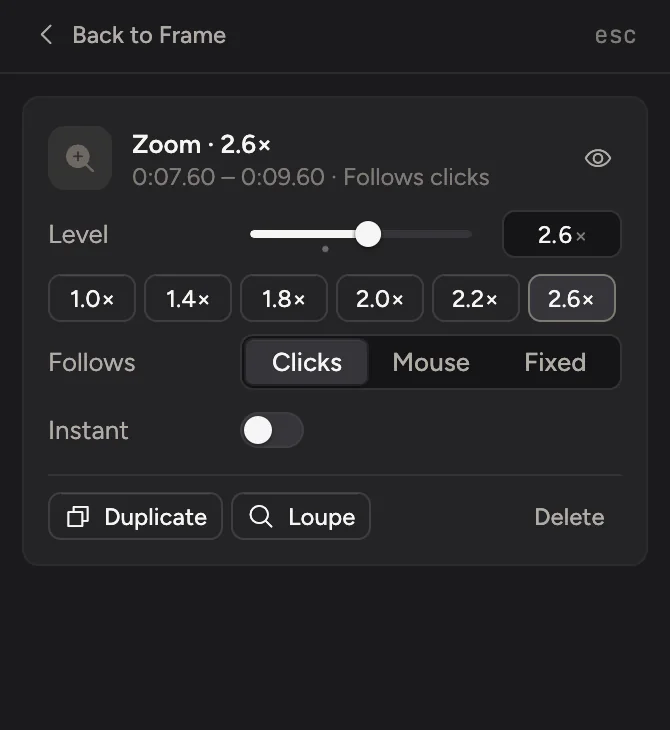
Click a zoom on the timeline, or in the list under In this video. Its card opens on the right.
| Setting | What it does |
|---|---|
| Level | How close this zoom gets. Press 1 to 9 with the zoom selected for quick levels. |
| Follows | Clicks moves between the places you clicked. Mouse follows the pointer. Fixed holds one spot: drag it under Target, or on the preview. |
| Instant | Cuts straight in and out, without the smooth move. |
| The switch at the top | Turn off to keep the zoom on the timeline but skip it. |
Drag a zoom to move it, or drag its ends to make it longer or shorter. Press ⌫ to delete it, or ⌘D to duplicate it. Loupe adds a glass loupe over the zoom. See Loupe.
Start over
In this video lists every zoom with its time and level. Click one to jump to it.
If you've moved things around and want Cinemac's zooms back, click Restore auto zooms. Zooms you put on slides stay. Remove every zoom deletes them all. Both are one undo step.
Go further
Open More settings at the bottom of the Zoom tab for finer control:
- Timing: Group size, Lead-in (how early a zoom starts before a click), Hold (how long it stays), and Merge gap (clicks closer together than this share one zoom).
- Behaviour: Start early begins each zoom 350 ms sooner. Fill the frame zooms far enough that no empty bands show. Mouse margin, Parallax and Depth blur set how pointer-following zooms pan and how the background moves and softens while zoomed.
- Zooms' own spring: Stiffness, Damping and Mass shape the motion itself, for people who like to tune. Changing these sets zooms apart from the feel.
See Fine-tune zooms for what each one does.