Help / Record
Record your screen, a window or an area
In the recorder, choose Display for a whole screen, Window for one app window, or Area for any part of the screen. Then click what you want to record.
Open the recorder from the menu bar icon with New Recording…. The four tabs at the top choose what you record.
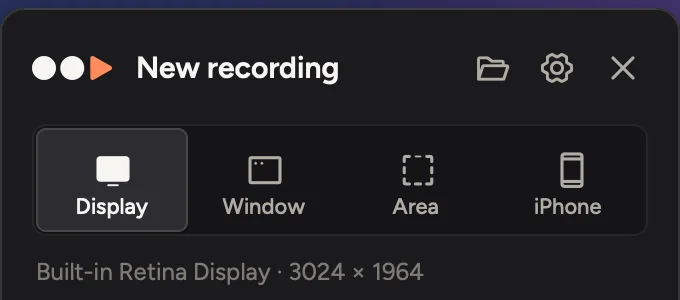
A whole display
- Choose Display. With one screen, that's it: click Start recording.
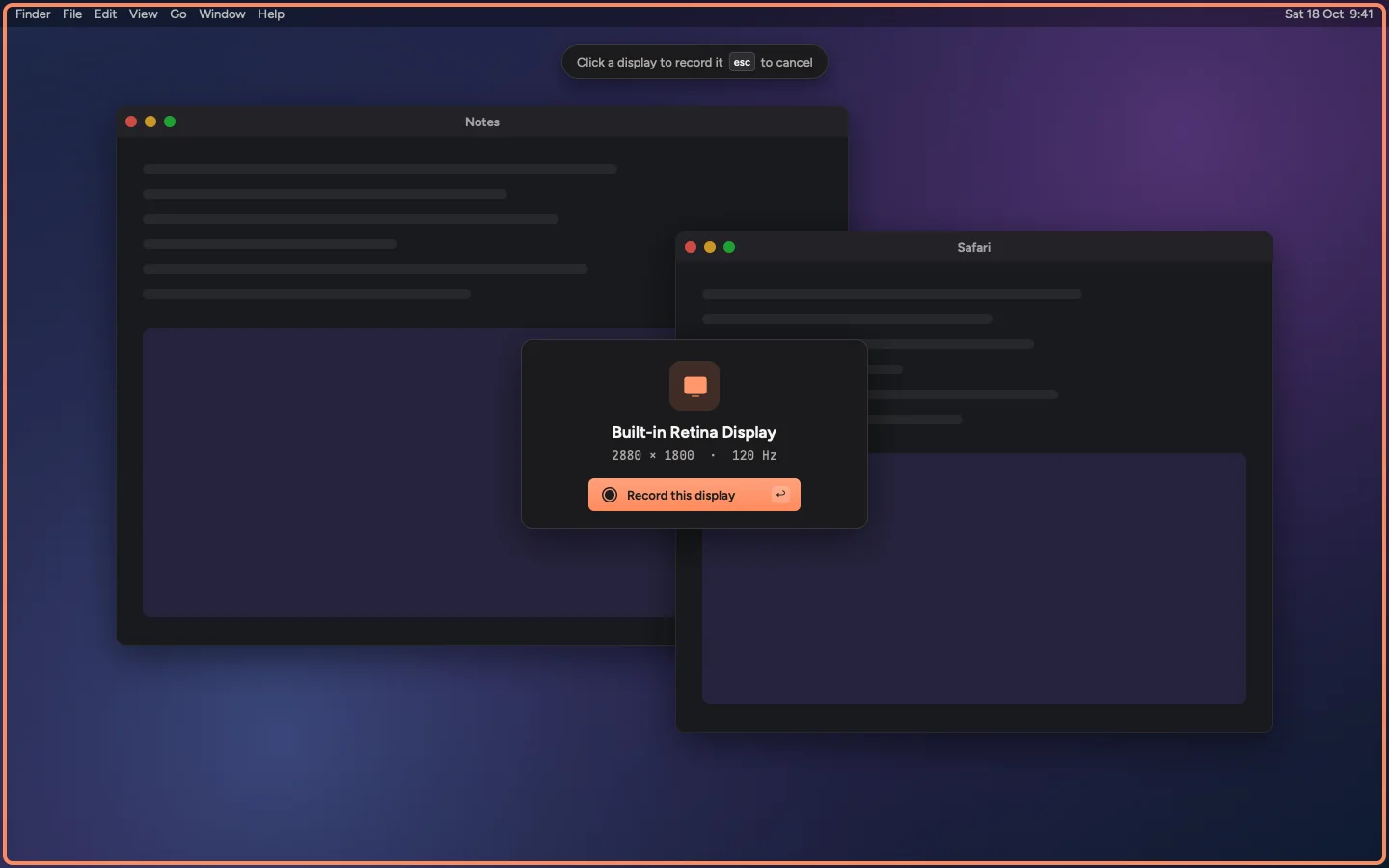
- With more than one screen, click Choose display, then click the screen you want. Each one shows Record this display.
One window
- Choose Window, then Choose window.
- Move the pointer over the window you want. It lights up. Click it.

Only that window is in the video, even if other windows move in front of it.
Tip
Set Window size to make the window an exact size before recording, such as 1280 × 720. It needs the Accessibility permission. Leave it on Keep its size to record the window as it is.
Part of the screen
- Choose Area, then Select area.
- Drag over the part of the screen you want. Drag the edges to adjust it.
- Pick a shape under the selection to lock it, such as 16:9 or 1:1. Use the arrow keys to nudge it.
- Click Record this area, or press ↩.
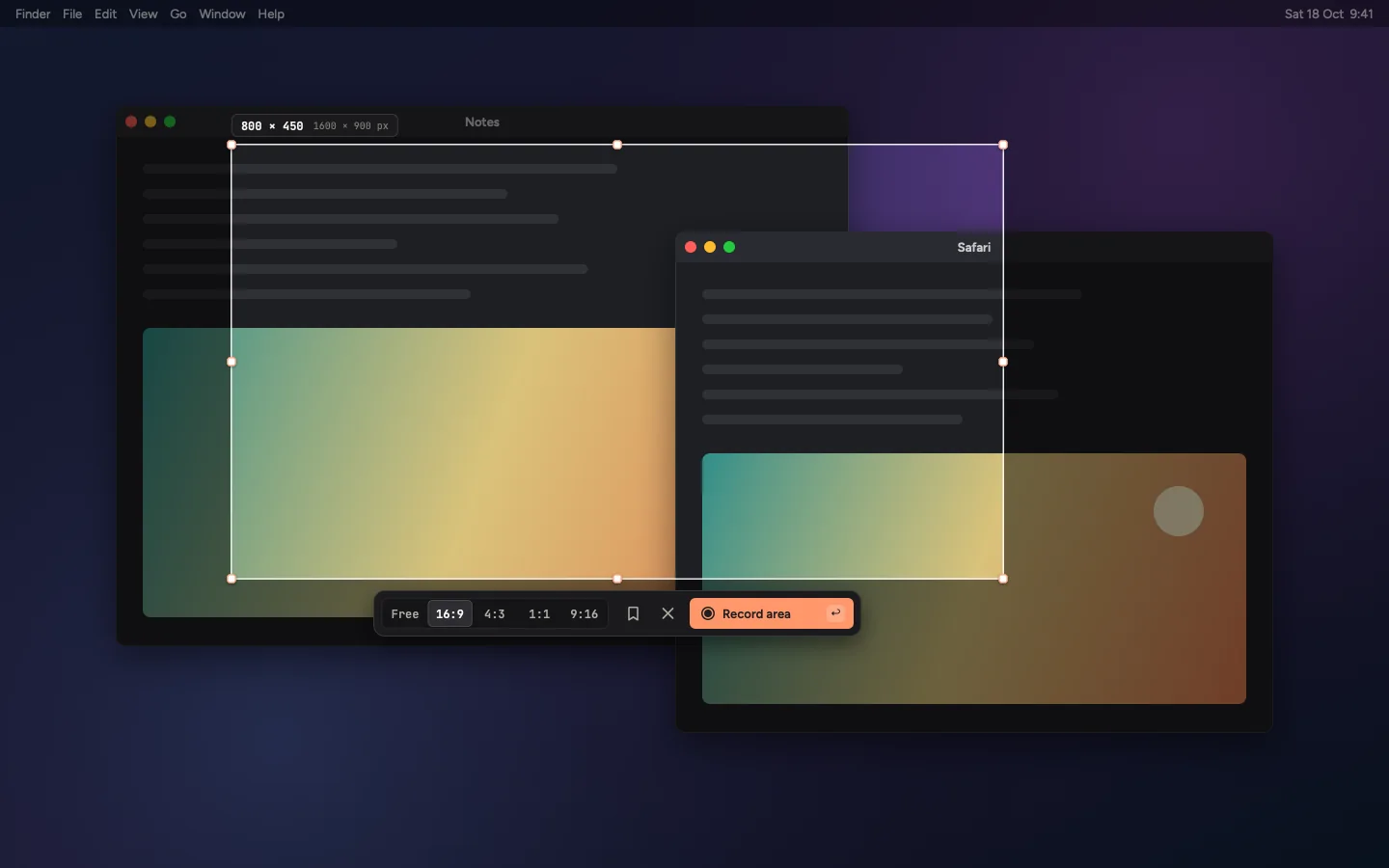
Cinemac remembers your last area. Next time it shows Last area · adjust it, then press Return.
Options
| Option | What it does |
|---|---|
| Countdown | Off, 3, 5 or 10 seconds before recording starts. Click the countdown to start early. |
| Hide desktop icons | Hides the icons on your desktop while you record a display or area. |
| Show camera while recording | A floating preview of your camera that only you see. It's not in the video. |
| Speaker notes | A scrolling prompter that only you see. |
| Highlight what's recorded | Outlines the window or area while you record. The outline is not in the video. |
An iPhone or iPad
- Connect the iPhone or iPad to your Mac with a cable and unlock it.
- If it asks, tap Trust, then enter the passcode.
- Choose iPhone in the recorder, pick the device and click Start recording.
Cinemac records the device's screen and sound, and plays it back upright in a matching phone or tablet frame.
Updated 21 October 2026Something unclear? Tell us