Clean up your voice
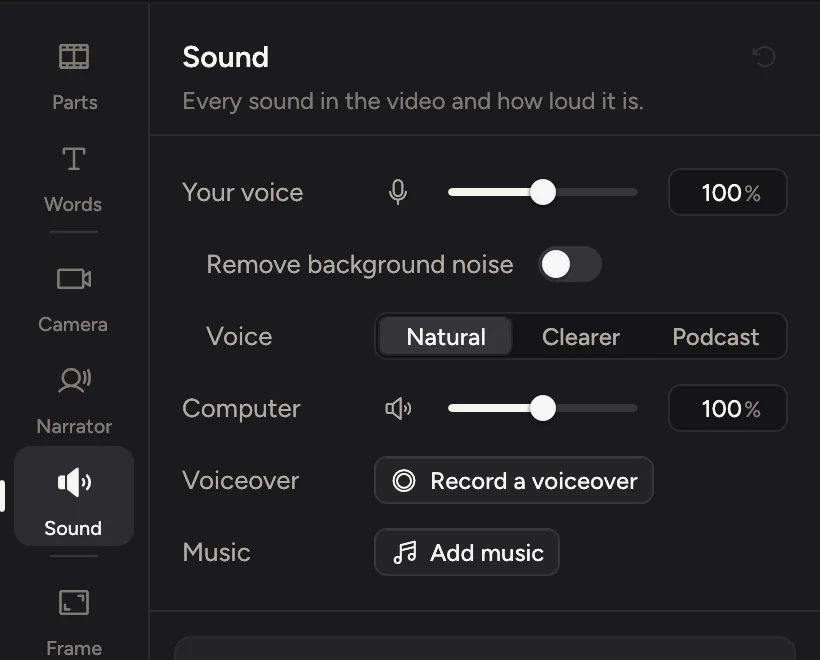
Open the Sound tab (⌘5). Under Your voice, turn on Remove background noise and pick Natural, Clearer or Podcast under Voice. Use the sliders to balance your voice and the computer's sound.
Clean up your voice
- Click Sound in the tabs on the right, or press ⌘5.
- Under Your voice, turn on Remove background noise to take out an air conditioner, fans, hum and room noise. It runs on your Mac, and your voice stays. Switch it off to compare.
- Under Voice, pick how your voice sounds:
| Voice | What it does |
|---|---|
| Natural | Your voice as recorded. |
| Clearer | Low rumble out, voice brought forward, gently evened. |
| Podcast | Close and even: background noise out, levels evened, pauses quieted. The most polished result. It always removes background noise. |
Play the video to hear the difference. To change one part only, select its clips and press V.
When Cinemac hears an air conditioner, a fan or hum in your voice, the tab offers Remove noise. Not now puts the offer away.
Balance the sound
- Your voice, Computer and, for phone recordings, iPhone or iPad each have a volume slider. Click the icon next to a slider to mute that track.
- More settings › Overall › Volume sets everything together: your recording, voiceover, narration, music and clicks.
You can also open the mixer from the button next to the name of the timeline's Sound row.
Change the volume in one place
To make the computer's sound quieter for a moment, or your voice louder in one sentence:
- One clip: select it and press V. Drag Mic or System, or pick a preset such as 50 %.
- Any stretch: press ⇧V, or choose Volume lines under More (⋯) in the timeline bar. A line shows on each sound lane. Drag across a stretch to set its level, or click the line to add a point and drag it. Right-click to reset the line.
Loudness
Under More settings › Overall, Even loudness makes every export about as loud as other videos online, so viewers don't have to change their volume. Target is how loud, in LUFS (−16 suits most platforms). Ceiling stops peaks from clipping.