Read your notes while you record
Turn on Speaker notes in the recorder, type or paste what you want to say, and start recording. The notes scroll while you talk and never appear in the video.
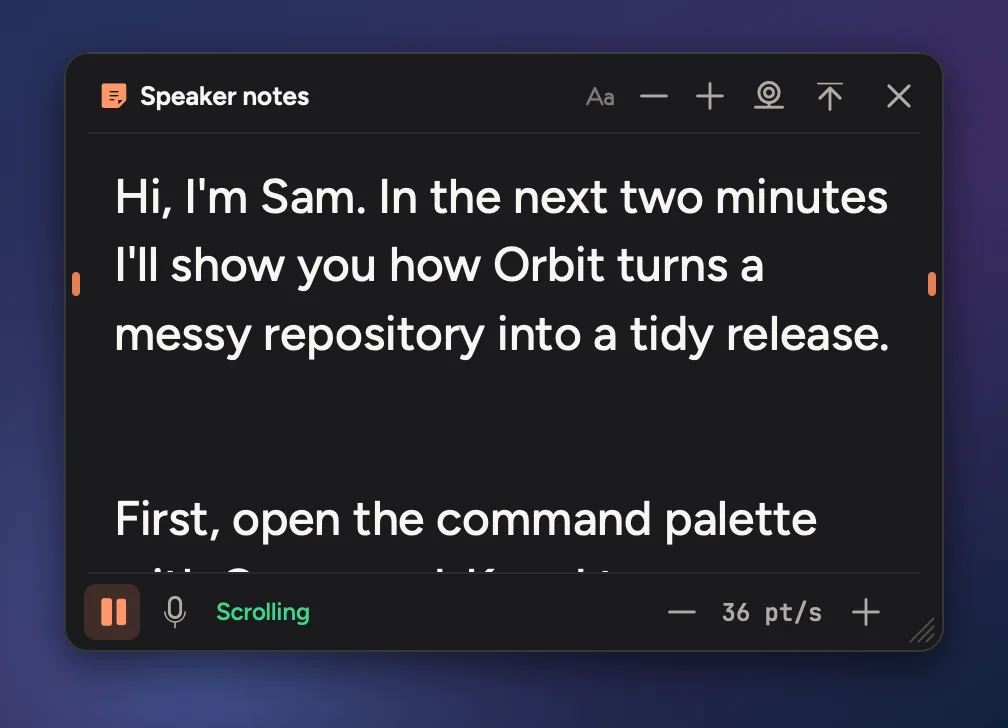
- 1Text size
- 2Put the notes under the camera
- 3Back to the top
- 4Scrolling on or off
- 5Follow my voice
- 6Speed
Use your notes
- In the recorder, turn on Speaker notes. The notes window opens.
- Type or paste what you want to say. Cinemac keeps your notes between recordings.
- Start recording. The notes scroll by themselves while you record.
The notes window is never in the video, even when you record the whole display.
How it scrolls
Choose with the buttons at the bottom of the notes:
- Steady pace: the notes scroll at the speed shown, in points a second. Use − and + to change it.
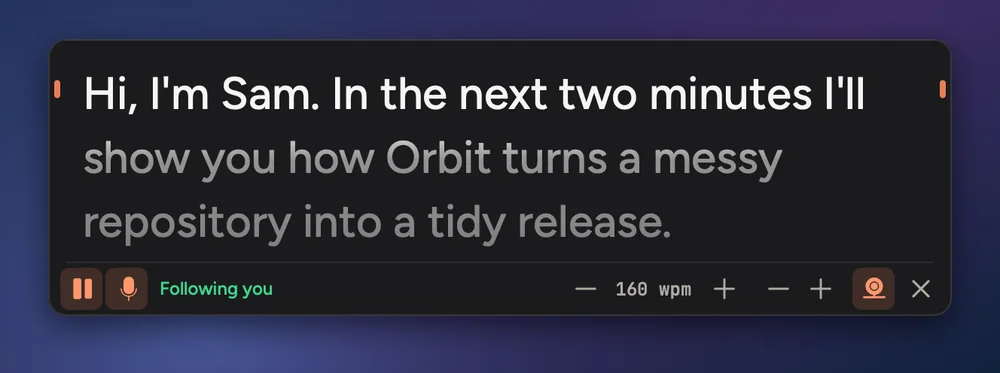
- Follow my voice: click the microphone. The notes move only while the microphone hears you, and pause when you stop talking. The speed shows in words a minute, and Cinemac learns your pace.
- Scroll yourself: click pause to turn auto-scroll off, then scroll with your trackpad.
If the notes get ahead of you or fall behind, press ⌥⇧⌘↑ to go back a line or ⌥⇧⌘↓ to go forward, from any app.
Read close to the lens
Click the camera button at the top of the notes to put them in a slim strip right under your Mac's built-in camera. Your eyes stay near the lens, so you look at the viewer while you read. Click it again to float the notes anywhere.
Settings
Settings › Recording › Speaker notes sets the defaults: whether the notes show, how they scroll, the speed, the placement and the text size.