Make the cursor look smooth
Open the Pointer tab (⌘8). Pick a style from the Everyday, Presenting or Playful rows and drag Size to make the pointer bigger. Cinemac smooths the pointer's movement for you. Clicks sets the click effect and sound. More settings has colours, movement and hiding.
Cinemac records where your pointer goes, separately from the screen. That means the cursor can be redrawn: smoother, bigger, sharper, or in another style.
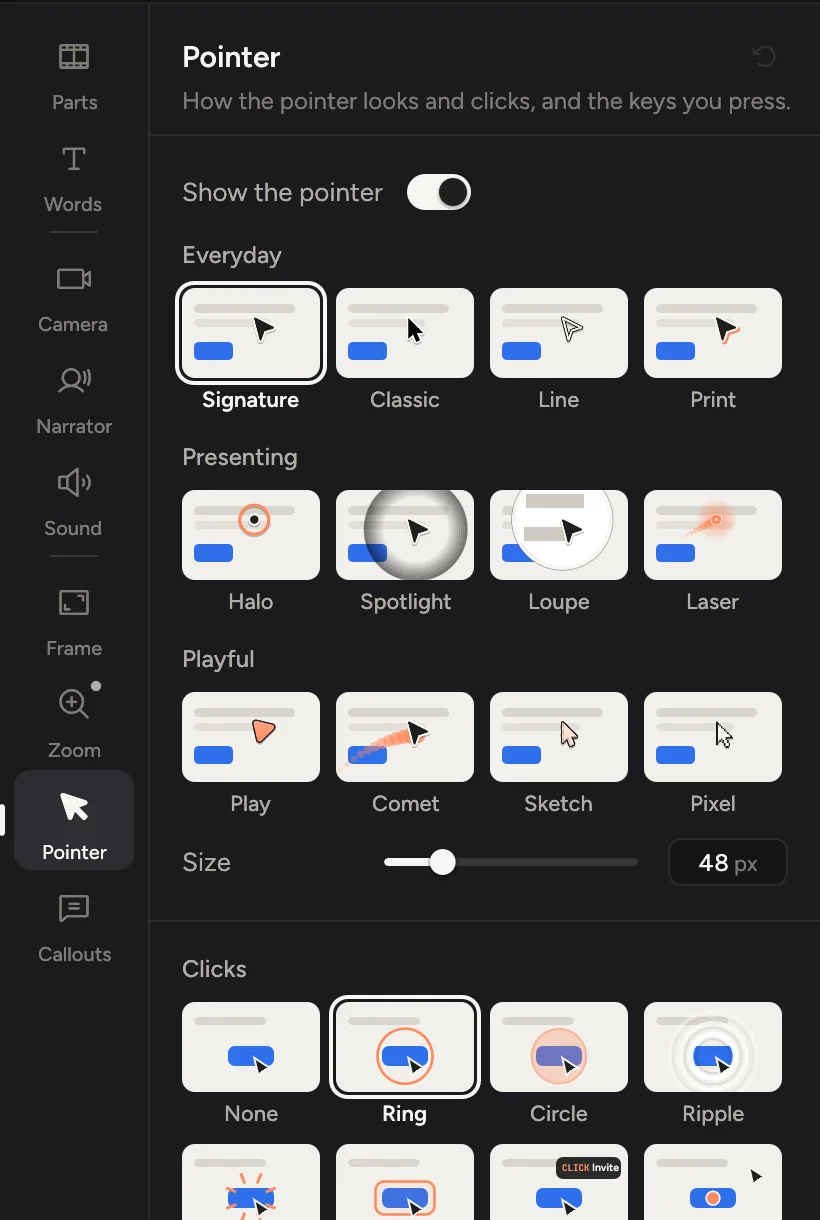
Size and style
- Click Pointer in the tabs on the right, or press ⌘8.
- Click a style. Hover a tile to see it on the video first, and to read what it's good for.
- Drag Size to make the pointer bigger. Viewers on phones will thank you.
The styles come in three rows:
- Everyday: Signature, Cinemac's own dart, Ink with a Paper rim, which reads on any screen. Classic, the familiar arrow, in Black or White (pick under Colour). Line, an outline only, so spreadsheets and code show through. Print, the dart with a flat Apricot shadow.
- Presenting: Halo, an Ink dot in an Apricot ring that opens over links. Spotlight, a soft pool of light that follows the pointer while the rest of the screen dims. Loupe, a round magnifier that shows what's under the pointer larger. Laser, a glowing Apricot dot that leaves a short streak as it moves, like a laser pointer on slides.
- Playful: Play, the Cinemac play triangle as the pointer. Comet, an Apricot ribbon that trails fast moves. Sketch, a marker-drawn arrow whose line wobbles a little. Pixel, a crisp 1-bit arrow.
Each style comes with its own click effect, which you can change under Clicks. Until you pick a style, the pointer you recorded is drawn as it was. In More settings › Colours and looks, move your pointer over Try it here to see the style move, click and change shape.
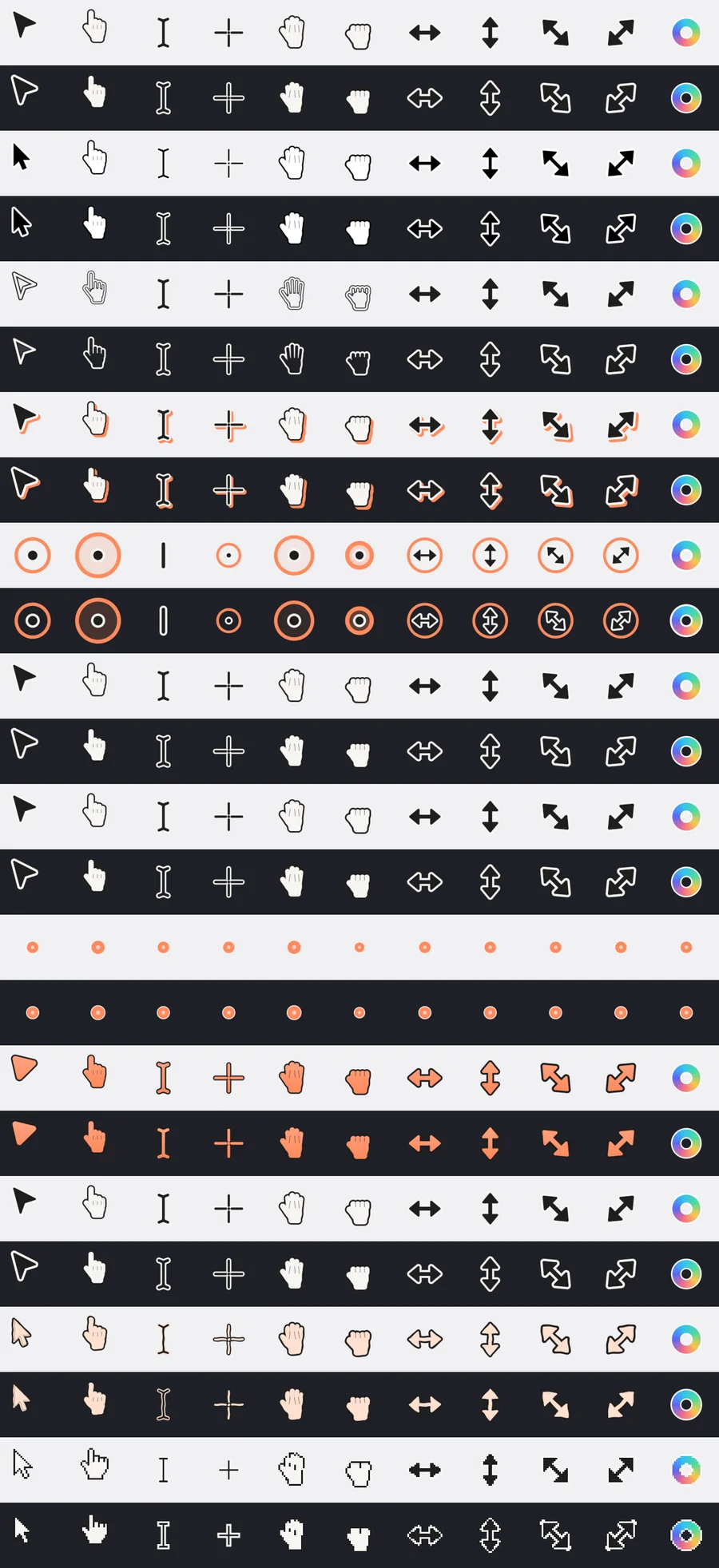
Projects made with the older Light, Soft or Glass styles keep looking the same. Light is now Classic in White. Once you pick another style, the old one is gone from the panel.
The Loupe style magnifies wherever the pointer goes. To magnify only some moments, add a Glass loupe from the Callouts tab instead.
More settings › Drawing › Vector set decides when Cinemac draws its own crisp cursors instead of the recorded ones: Never, only when the recorded one is too Low-res for the zoom, or Always. Picking a style turns it on.
Save look, under Colours and looks, keeps the style with its colours and animation, for every project. Right-click a saved look to delete it.
Turn off Show the pointer to hide it for the whole video.
Movement
The pointer glides instead of jumping. Under More settings › Movement:
- Turn off Smooth to show the pointer exactly as recorded.
- Feel sets how smooth: Smooth, Medium or Rapid, or a Custom spring.
- Shake removal drops one-off glitches where the pointer jumped.
Clicks
Under Clicks, pick an effect:
- None: no effect; the pointer still presses in a little.
- Ring: a thin ring eases out from the tip.
- Circle: a soft disc pops and fades.
- Ripple: a wave bends the screen around the click.
- Burst: eight short rays spark out (square pixels with the Pixel style).
- Focus: a rounded outline draws around the button you clicked.
- Label: a small tag names the click, like CLICK Invite or RIGHT-CLICK.
- Mark: a dot stays on the spot after the pointer moves on.
Double-clicks play twice, and right-clicks draw dashed. Sound beside the effects adds a click sound: Off, Soft, Crisp or Trackpad.
Focus and Label need to know what you clicked, which Cinemac reads on the Mac while you record. In recordings that don't have it, Focus draws a ring and Label just says Click.
More settings › Click details sets how long the effect lasts, how far a ripple spreads, and Press, which shrinks the cursor a little while the button is held. More sounds are in Click sounds.
Hide the cursor
Under More settings › Hide:
- While typing hides it while you type.
- When idle fades it out when the pointer rests, after the time you set.
- Loop glides it back to where it started before the end, so the video loops smoothly.
- Stop before end holds it still for the last moments.
To hide the cursor in one clip only, select the clip and use Cursor in its settings: Hide, or No smoothing to show it as recorded.
Colours, animation and more
More settings also has Colours and looks (presets, Match background, the fill, outline, accent and click colours, Contrast guard and your saved looks), Animation (the comet's trail and the laser's streak, the spotlight's size, the loupe's Magnify and Lens size, morphing between shapes, and Calm to drop the motion), Tilt (a slight lean as the pointer moves) and Shadow.
The feel you pick under How things move also sets how the pointer moves.
Coding agents set the pointer too. Ask Claude Code or Codex for "the Laser pointer with Focus clicks" and it picks them by the names on this tab. See Agents.
Warnings
The tab warns you when the cursor will look soft, is hard to see, was recorded at an enlarged size, or has colours too alike. Each warning has a button that fixes it.