How clips join, open and end
Pick a look for every join in Parts (⌘1): Smart, Gentle, Lively or Cuts, and drag Speed under it to make every transition faster or slower. To change one join, click its chip on the timeline, pick Cut, Smooth, Dissolve, Float, Push or Zoom, and drag its Speed slider.
A join is any place where one clip gives way to the next: a cut you made inside a take, the change from one part to the next, or a slide coming in or going out. The video's start and end are joins too.
Pick a look
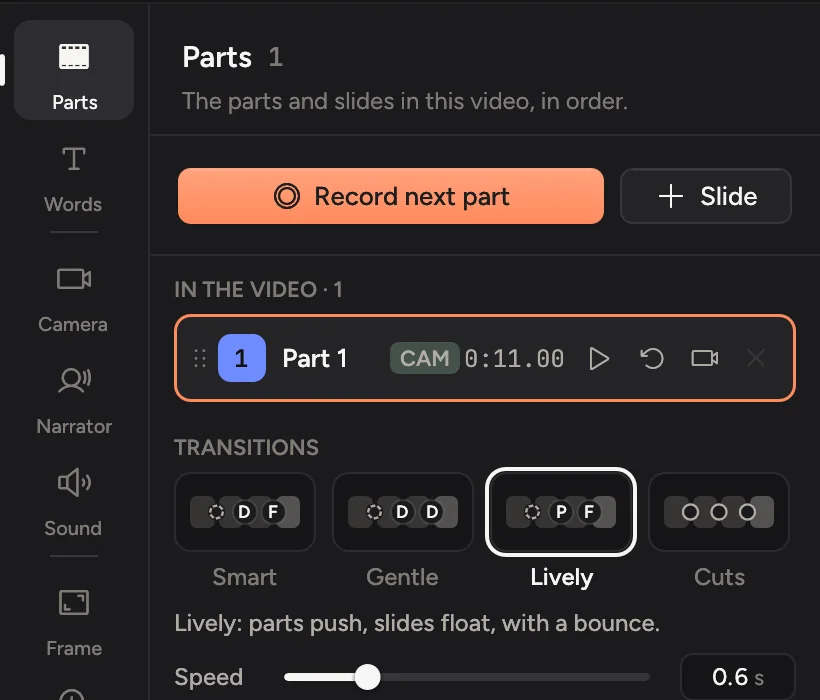
Click Parts in the tabs on the right, or press ⌘1. Under Transitions, pick one:
| Look | What you get |
|---|---|
| Smart | Parts dissolve into each other, slides float in, cuts inside a take are smoothed over, and the video rises in and fades out. The usual look. |
| Gentle | A soft dissolve at every join, and a fade in and out. Good for talks and walkthroughs. |
| Lively | Parts push along, slides float in, and the video zooms in at the start. Moves are a little springier. Good for launches. |
| Cuts | Straight cuts everywhere. Nothing moves. |
From one slide straight to the next, like the pages of a deck, every look but Cuts dissolves in place: the slide stays still and only what's on it changes.
A new look keeps the joins you changed one by one. Use the look everywhere clears them.
Make transitions faster or slower
Under the looks, drag Speed: left is faster, right is slower. The box at its end shows how long every transition takes, in seconds (0.6 s to start with). Click the box to type a length, from 0.2 to 2 seconds.
Speed sets every transition at once: between parts, in and out of slides, at cuts, the joins you changed one by one, and how the video opens and ends. It shows even when only the opening or ending moves. Smooth cuts stay quick, at 0.16 s. To change just one join, use the Speed slider on its card (below).
A transition takes the seconds it shows, whichever look you pick. The one exception is a short clip: a move into it takes at most half of the clip, and the opening and ending at most a third. The chip then shows both, like “Float · 2 s (0.5 s here: the clip is short)”.
Change one join
Every join has a chip on the clip lane of the timeline:
- A letter is a move: D for Dissolve, F for Float, P for Push, Z for Zoom.
- A dot is a cut. A dashed dot is a smooth cut.
- A brighter ring means you gave that join its own move.
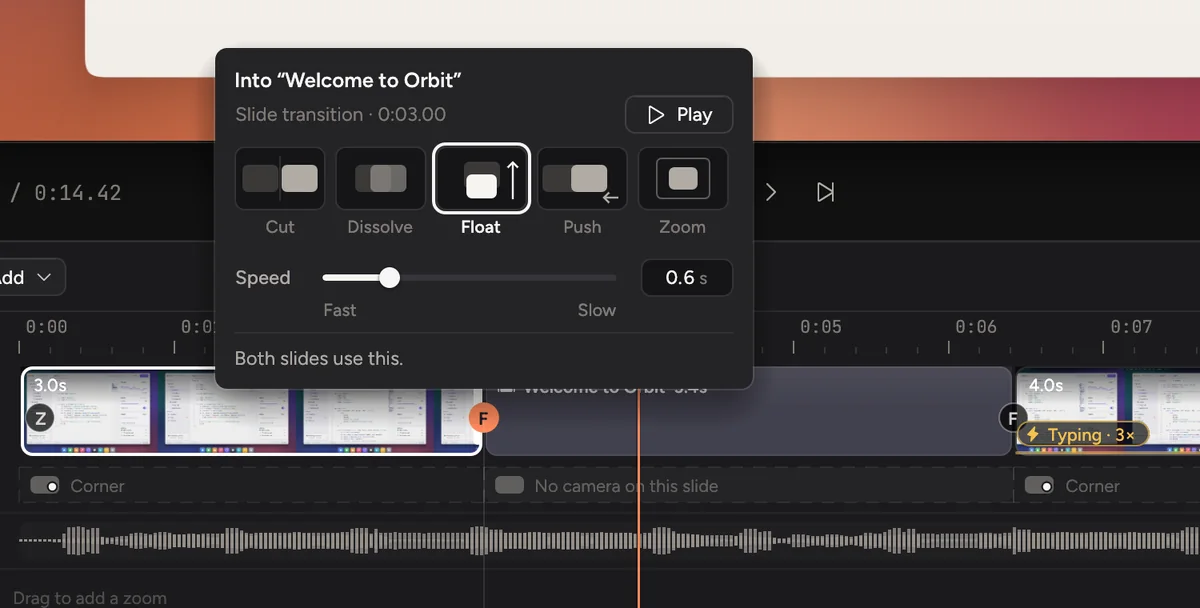
Hover a chip to see its move and speed, like “Float · 0.6 s”. Click it to open its card, then pick a move:
| Move | What you see |
|---|---|
| Cut | Straight to the next. |
| Smooth | A quick dissolve that hides the jump. Only at cuts inside a take. |
| Dissolve | One picture dissolves into the next. |
| Float | The next rises in over the last. |
| Push | Both slide along together. |
| Zoom | Through the last picture into the next. |
- Speed sets how long this move takes: drag left for faster, right for slower, or click the box and type the seconds. The join plays as soon as you let go, so you see the new speed straight away.
- Play plays that moment again.
- Under the line, the card says whether this join matches the others like it. Reset puts this join back to what the others use.
- Apply to all cuts, Apply to all parts or Apply to all slides gives every join like this one this move and speed, including the ones you make later.
Press Esc or click anywhere else to close the card.
Opening and ending
The chips at the very start and end of the clip lane set how the video opens and ends. They take the same moves, and a Speed slider of their own.
Good to know
- The picture you're leaving stays on screen while the next one comes in, so the window never blinks out between clips.
- At a cut, the zoom and the pointer jump with the picture instead of sliding across. A zoom set to Instant snaps in straight away.
- The camera bubble keeps its size while the screen is zoomed in.
- How things move on the Zoom tab doesn't change your joins. Projects made before this update keep their joins as they were until you change one.