Your camera in the video
Open the Camera tab on the right and pick a tile under How you appear. Corner puts you in a corner, Side by side puts you beside your screen, Cutout stands you in front of it, Full screen shows only you, and Hidden takes you out.
Your camera is recorded on its own, so you can change how you appear at any time after recording.
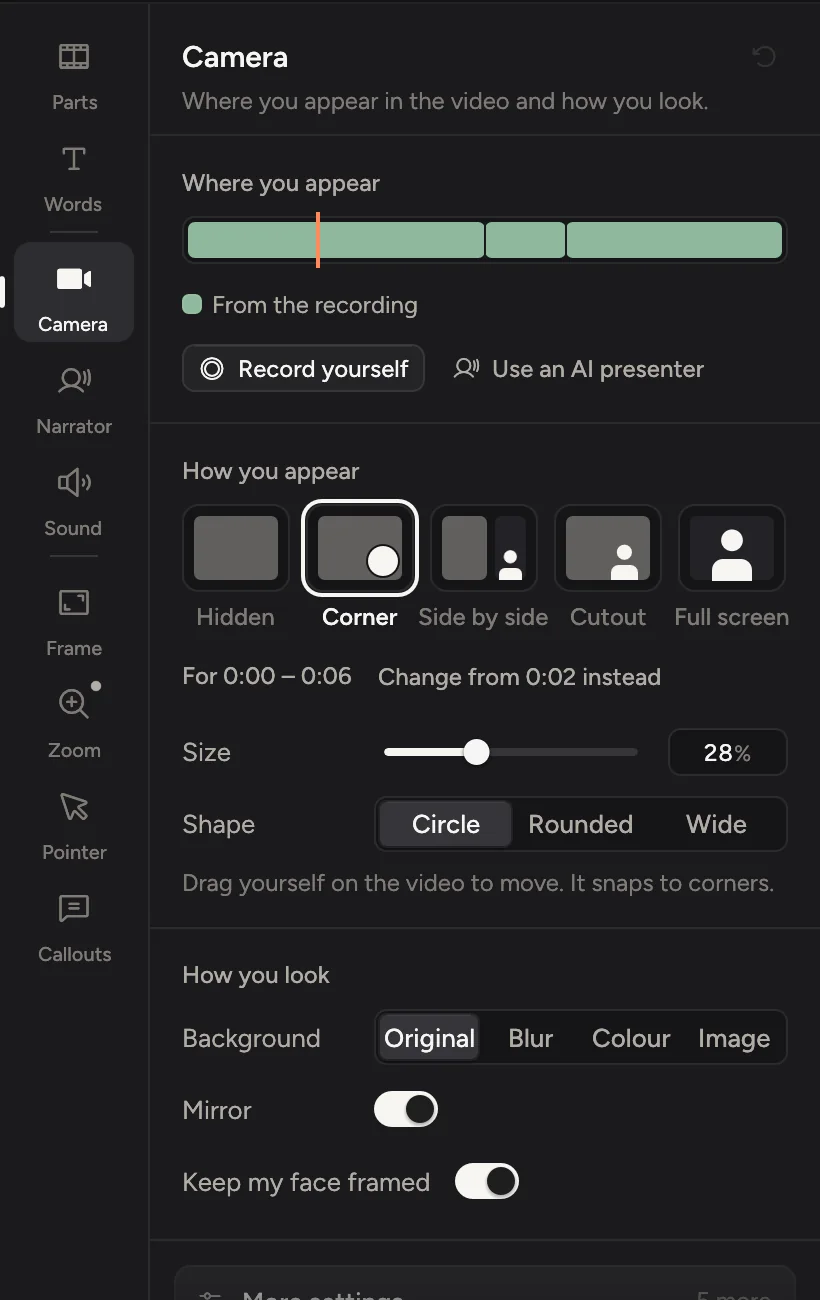
The Camera tab (⌘3) has three parts:
- Where you appear: a map of the video showing where you are on screen and where the camera comes from: the recording, a take you recorded later, or an AI presenter. On slides and a deck's pages, it marks you where you presented on camera.
- How you appear: the layout tiles and two or three controls for the one you picked.
- How you look: the looks, Touch up, Fix my lighting, Key light, Background, Mirror, Keep my face framed, and Fine-tune for colour. See Camera looks, Framing and Camera background.
No camera in this recording? The tab offers Record yourself, to film yourself while the video plays, or an AI presenter who reads your script.
Pick a layout
Click a tile under How you appear:
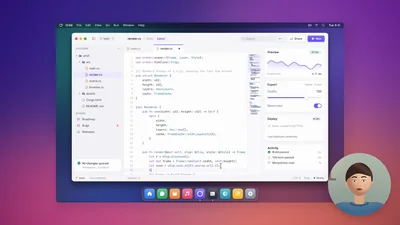
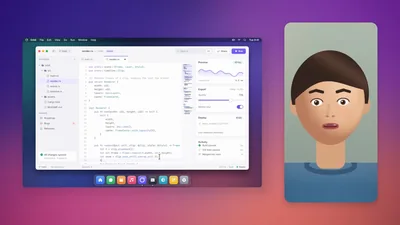
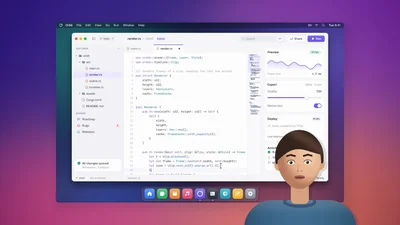
Hidden takes you out for that stretch.
You can also do this right on the video. Hover over yourself for a strip of layout drawings, or double-click yourself to step through the layouts.
The controls for each layout
| Layout | Controls |
|---|---|
| Corner | Size, and Shape: Rounded (a rounded square, what new recordings use), Circle or Wide. Drag yourself on the video to move to another corner. Hold ⌘ to place yourself anywhere. |
| Side by side | You on: Left, Right, Top or Bottom. Screen share sets how much of the frame the screen gets. |
| Cutout | Size, and Stand on: Left, Centre or Right. Cinemac removes your background and stands you in front of the screen. It works best with even light and a plain wall. |
| Full screen | Zoom in sets how close the camera is on you. |
Change the layout during the video
The layout you pick applies to the stretch the playhead is in. The line under the tiles says which: For the whole video, or a time range.
To change the layout partway through:
- Move the playhead to where the change should start.
- Click Change from … instead under the tiles. Or click Add in the timeline bar and choose Change the camera here.
- Pick the layout for the new stretch.
Camera changes sit on the timeline's Camera row. Drag their ends to change when they start and stop. Layouts change with a smooth move, set by the feel in the Zoom tab.
A block that shows for under 1.5 seconds has a small dot and says Short, since the camera would flip there and straight back. Hover it to see why. Tidy up in its menu, or in the Add menu, takes short ones out. See Tidy up.
A take you recorded later has its own layout. Changing it changes just that take, and the message that pops up says so, with Undo.
On slides covered by a take, you show Full screen. Any other slide under a take has a You on this slide choice in its settings.
More settings
Open More settings at the bottom of the tab for:
- Colour: looks, LUT files, and exposure, contrast and colour.
- Shape and place: roundness, margin, shadow and size while zoomed in, the gap and corners for Side by side, the shape of the Cutout, Crop the camera, and an exact Position.
- Hide during pauses: step away while nobody speaks.
- Animation: Pop in and out, so you arrive after the video opens and step away for slides.
- Hide everywhere: for the rare video without you.