Connect ElevenLabs and HeyGen
Open Settings › AI voice, click Replace… or paste into the API key field for ElevenLabs or HeyGen, and click Save. Cinemac checks the key and shows Connected. You can also paste it straight into the voice list in the Narrator tab.
Cinemac doesn't sell AI speech. It uses your own account with each service, so you pay them directly and keep your voices and avatars there. You only need the key for the way you narrate.
| To narrate with | You need |
|---|---|
| AI voice | An ElevenLabs account and API key |
| AI presenter | A HeyGen account and API key |
Add a key
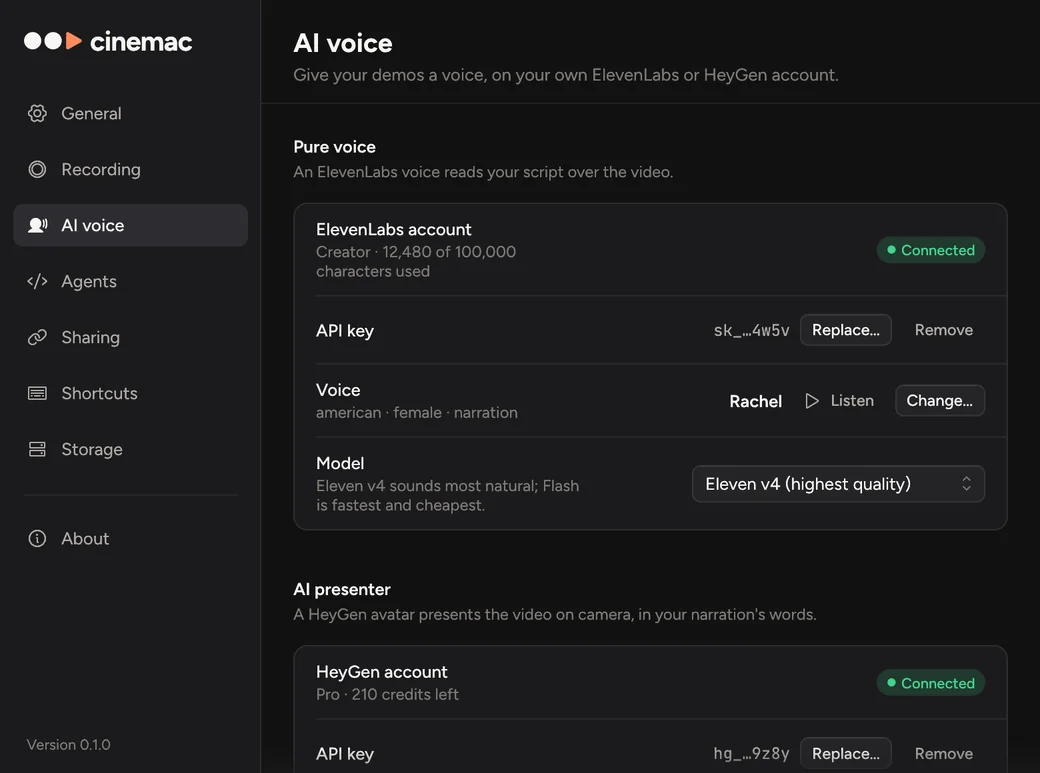
- Click the Cinemac icon in the menu bar, choose Settings…, then click AI voice.
- In the card for the service, click Get a key if you don't have one yet. It opens the service's site, where you make a key.
- Paste the key and click Save.
- Cinemac checks it. Account shows Connected, with your usage or credits.
If it says Not accepted, the key was mistyped or switched off on the service's site. Make a new one and paste it again.
You don't have to visit Settings first. The first time you open the voice list in the Narrator tab, it asks for the key right there and checks it on the spot.
Change or remove a key
Click Replace… to paste a new key, or Remove to delete it from the Keychain. Removing a key doesn't delete anything already spoken. Those lines keep playing and exporting.
Where keys are kept
Keys are stored in your macOS Keychain, not in your projects. A project you share with someone never contains your key. Each key is sent only to the service it belongs to.