Save a look as a preset
Choose Presets › Save current style… at the top of the editor and name it. Apply it to another project from the same menu, or make it the default for new recordings.
A preset keeps every style setting: background, screen, cursor, zoom, camera, captions, audio and overlays. It doesn't keep the crop, so each project keeps its own.
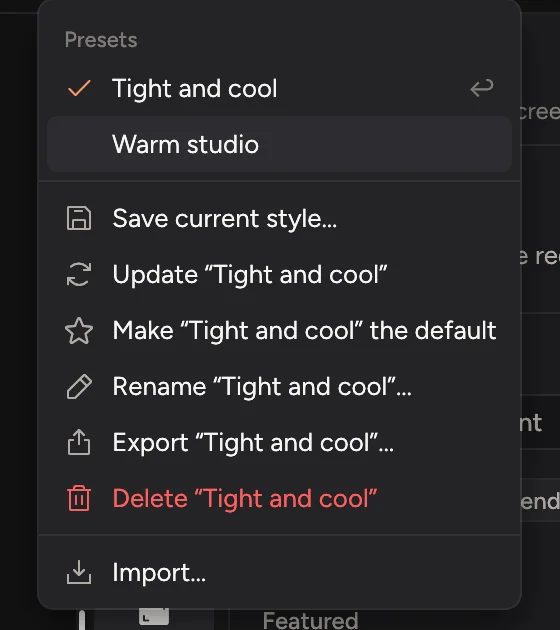
Save a preset
- Get a project looking the way you want.
- Click Presets at the top of the editor, then Save current style….
- Type a name and click Save.
A background image, camera background or music file the look uses is saved inside the preset.
Use a preset
Click Presets and pick one. The project takes its look straight away. Press ⌘Z to undo.
Point at a preset in the menu to see it on the preview before you choose.
To give several projects the same look, select them in Projects, right-click and choose Apply preset. Their crops are kept.
Make it the default
With a preset applied, open Presets and choose Make "name" the default. New recordings start with that look. Clear default goes back to Cinemac's own look.
Or turn on Use the last project's look in Editor settings (⌘,): each new recording starts with the look of the project you edited last.
Change, rename or delete
With a preset applied, the Presets menu offers Update "name" (save the current look over it), Rename…, Export… and Delete.
Share presets
Export… saves a .cinemacpreset file. Send it to a teammate. They double-click it, or choose Presets › Import…, to add it to their Cinemac.
To share presets between your own Macs, choose a synced folder, such as one in iCloud Drive, under Presets › Folder in Editor settings (⌘,).