Record in parts
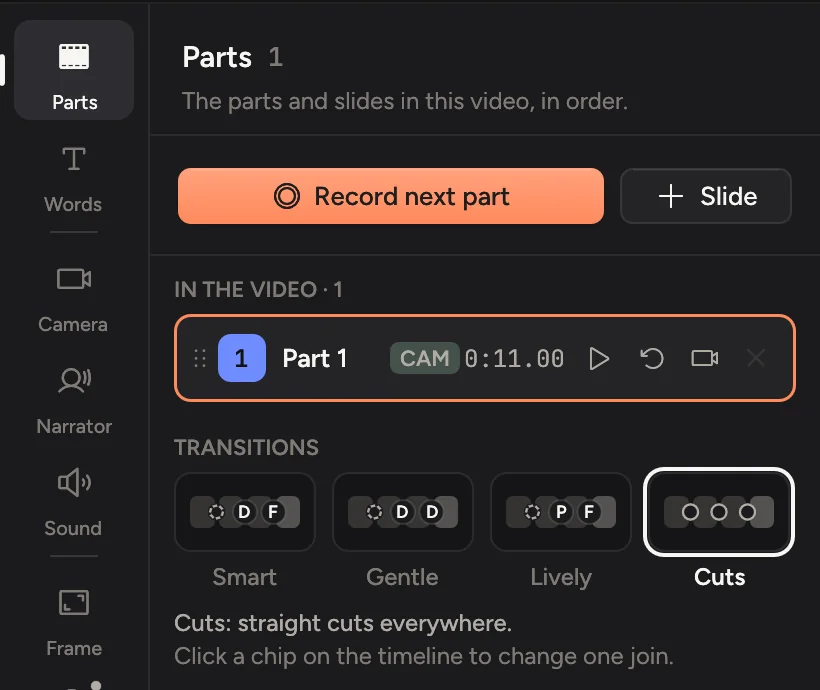
Record the first part as usual. In the editor, open the Parts tab (⌘1) and click Record next part. Each recording becomes a numbered part of the same video, and you can drag them into any order.
Short parts are easier to get right than one long take. Record one step, check it, then record the next.
Record another part
- In the editor, click Parts in the tabs on the right, or press ⌘1.
- Click Record next part.
- Choose what this part records: Full screen, a Window or an Area, and switch the Camera and Microphone on or off. It starts the way the part before was recorded, so you can just press Record (or ↩).
- The editor steps aside. For a window, click it; for an area, drag over it; with more than one display, click the one to record.
- After the countdown Cinemac records. Press ⌃⌥⌘S to stop. The editor comes back with the new part in place.
Where the new part goes depends on the playhead. At the end of the video, it goes at the end. Inside another part, it goes straight after that part.
While a part records, ⌃⌥⌘N finishes it and starts the next one straight away, ⌃⌥⌘R throws it away and records it again, and ⌃⌥⌘P pauses. These keys only work while a part is recording.
Change the order
Drag a part by its handle on the left to a new place in the list. Its clips move with it.
Under Transitions, pick how parts join: Smart, Gentle, Lively or Cuts. On the timeline, a chip between two parts says how the next comes in, and you can click it to change that one. See How clips join, open and end. To put a title or a list of points between parts, add a slide.
Redo one part
Click the re-record arrow on a part (Record this part again). Choose what to record, as for a new part, and Cinemac records a new version of just that part, in the same place. The rest of the video stays as it is. You can also right-click its clip on the timeline and choose Re-record this part….
Leave a part out
Click the × on a part (Take this part out of the video). Nothing is deleted. It moves to Not in the video below the list, where you can:
- Click play to watch it.
- Click Add to put it back at the end of the video.
Rename a part
Double-click its name and type a new one. Names help when you swap parts later.
Film yourself over a part
The camera button on a part, Record yourself over this part, plays that part while you talk to the camera. See Record yourself over the video.
Parts of different sizes
Each part keeps its own shape. A window after the whole screen, an area, or another display shows as it was recorded, in the same frame and on the same background, with no black bars. Zooms, clicks and the cursor follow each part. A crop you set in Frame applies to the parts recorded like the first one.
Parts without the camera
Switch the Camera off when you record a part and the video shows no camera there: the screen takes the whole frame for that part, whatever the camera layout. The parts recorded with the camera keep it.