Allow Cinemac to record
macOS asks you to allow screen recording before any app can record. Cinemac opens the right page in System Settings and shows you exactly what to drag where.
What Cinemac asks for
Cinemac asks for each permission in turn, during the welcome or from Permissions… in the menu bar icon. Each one says what it's used for and what Cinemac never does with it. Only screen recording is required. Not now skips one, and you can come back to it later.
| Permission | What it is for | Needed? |
|---|---|---|
| Screen & System Audio Recording | Captures the screen and the sound your Mac plays. | Yes |
| Microphone | Records your voice. | When you use a microphone |
| Camera | Records your webcam. | When you use a camera |
| Input Monitoring | Records your keystrokes for shortcut overlays. Clicks, zooms and the cursor work without it. | Optional |
| Accessibility | Lets Cinemac resize the windows it records, and name what you click for callouts. | Optional |
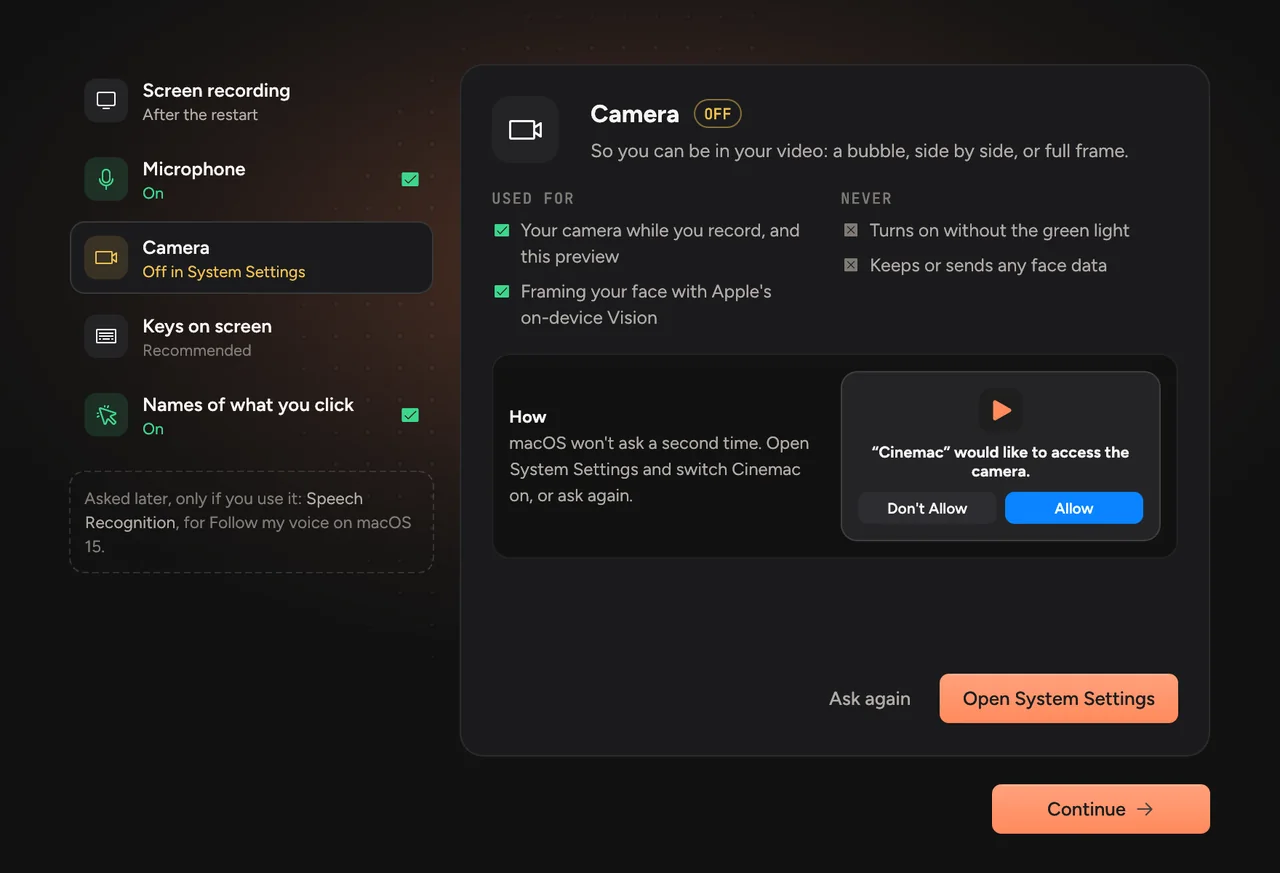
Allow screen recording
- In the welcome or in Permissions… (from the menu bar icon), pick Screen recording and click Open System Settings.
- System Settings opens at Privacy & Security › Screen Recording, and a small Cinemac helper appears beside it.
Drag the Cinemac icon from the helper into the list. You can also click + under the list and choose Cinemac.
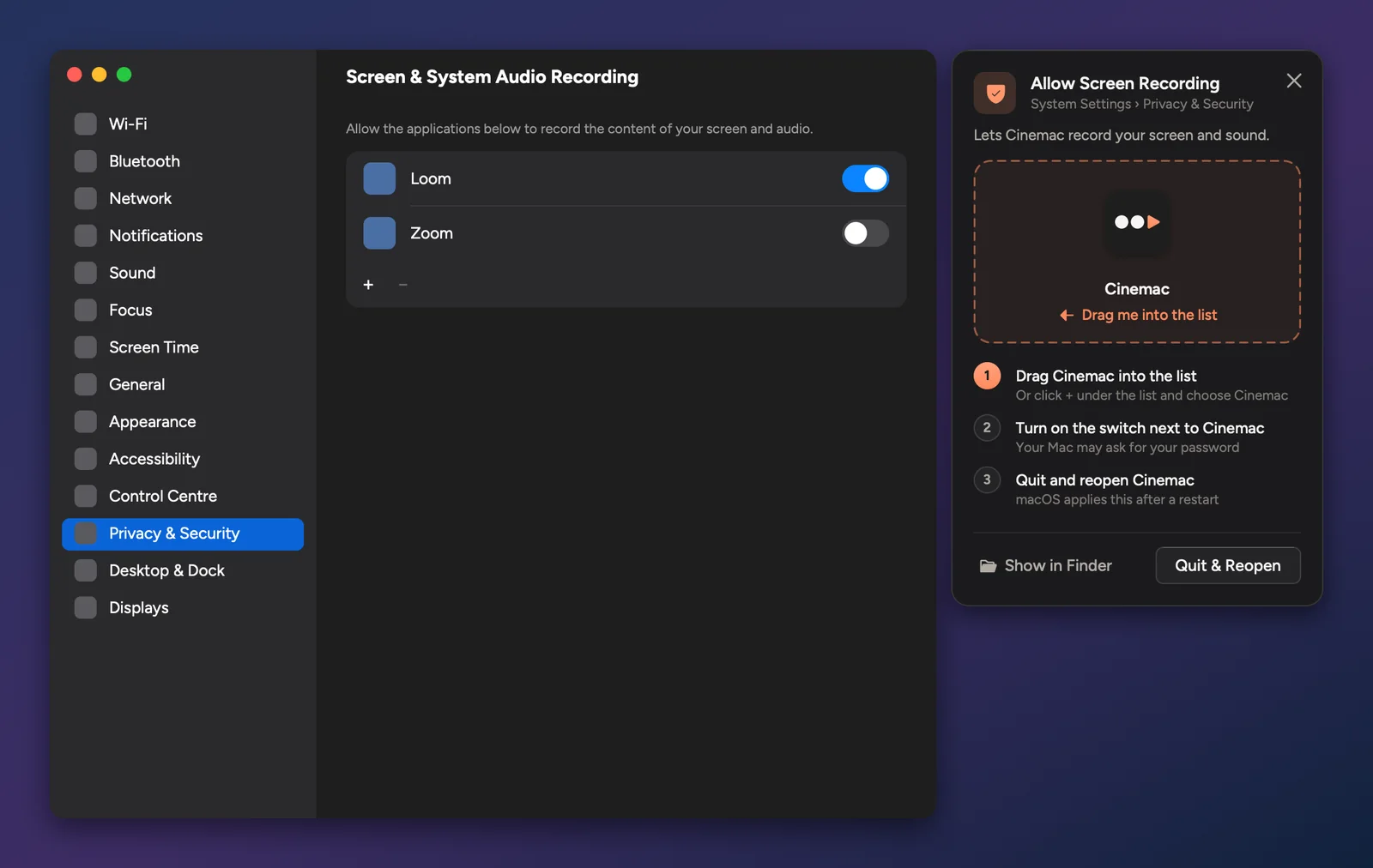
- Turn on the switch next to Cinemac. Your Mac may ask for your password.
- Click Quit & Reopen in the helper, or Reopen Cinemac in the welcome. Cinemac opens again with the new permission, right where you were.
Once the switch is on, the helper shows Cinemac is allowed. After Cinemac reopens, you can close System Settings.
Microphone and camera
These two ask with a normal macOS prompt the first time you pick a microphone or camera in the recorder. Click Allow.
If you clicked Don't Allow earlier, macOS won't ask again. In the recorder, choose Microphone access is off · open Settings… (or the camera one), and turn Cinemac on in the list.
Input Monitoring and Accessibility
You can skip both and still record. Allow Input Monitoring if you want the keys you press to show in your video. Allow Accessibility if you want Cinemac to resize a window to an exact size before recording it, or to write callouts from what you click. Both use the same helper as screen recording.
If a switch is on in System Settings but Cinemac still says it isn't allowed, see Permission is on but Cinemac doesn't see it.