Help / You on camera
Blur or replace your background
In the Camera tab, under How you look, set Background to Blur, Dim, Colour or Image. Cinemac finds you in the picture and changes only what is behind you.
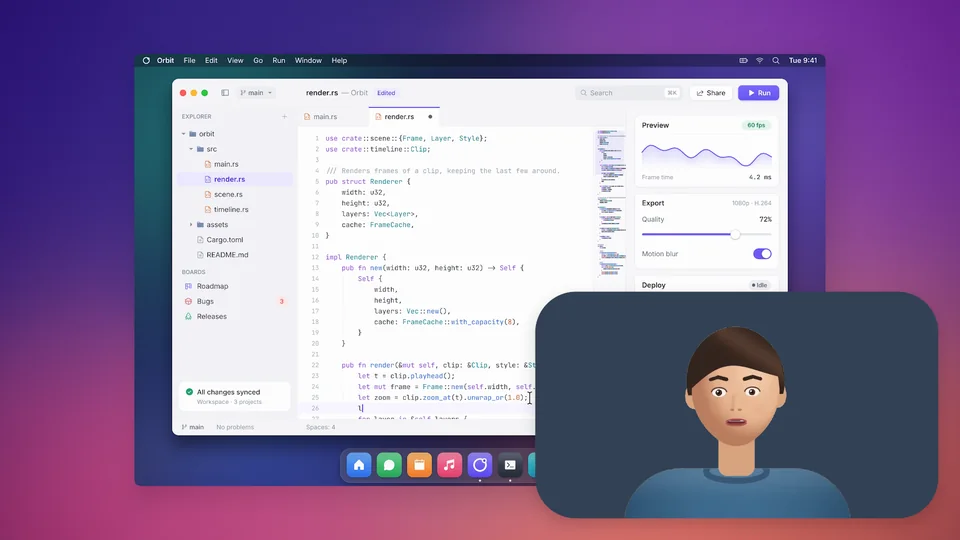
- Open the Camera tab on the right.
- Under How you look, find Background.
- Choose one: - Original: the room as recorded. - Blur: the room, softly blurred. Set how much. - Dim: the room, darker, so you stand out. Set how much. - Colour: a plain colour of your choice. - Image: a picture you choose, such as a branded backdrop.
A cleaner edge
Soft edge sets how soft the outline around you is. Turn on Refine edge to use your face as a guide: stray patches away from you are dropped, and the edge around your head stays crisp.
Tip
Even, soft light from the front and a background that doesn't match your clothes give the cleanest result.
The Cutout layout uses the same outline to stand you in front of your screen.
Updated 29 October 2026Something unclear? Tell us