Write a narration script
Move the playhead to where a line should start, type it into Write the next line… at the bottom of the Narrator tab and press ⌘↩. Or double-click the Narration lane on the timeline at that moment. Then click Speak all.
A narration script is a list of lines. Each line starts at a moment in the video and is spoken from there.
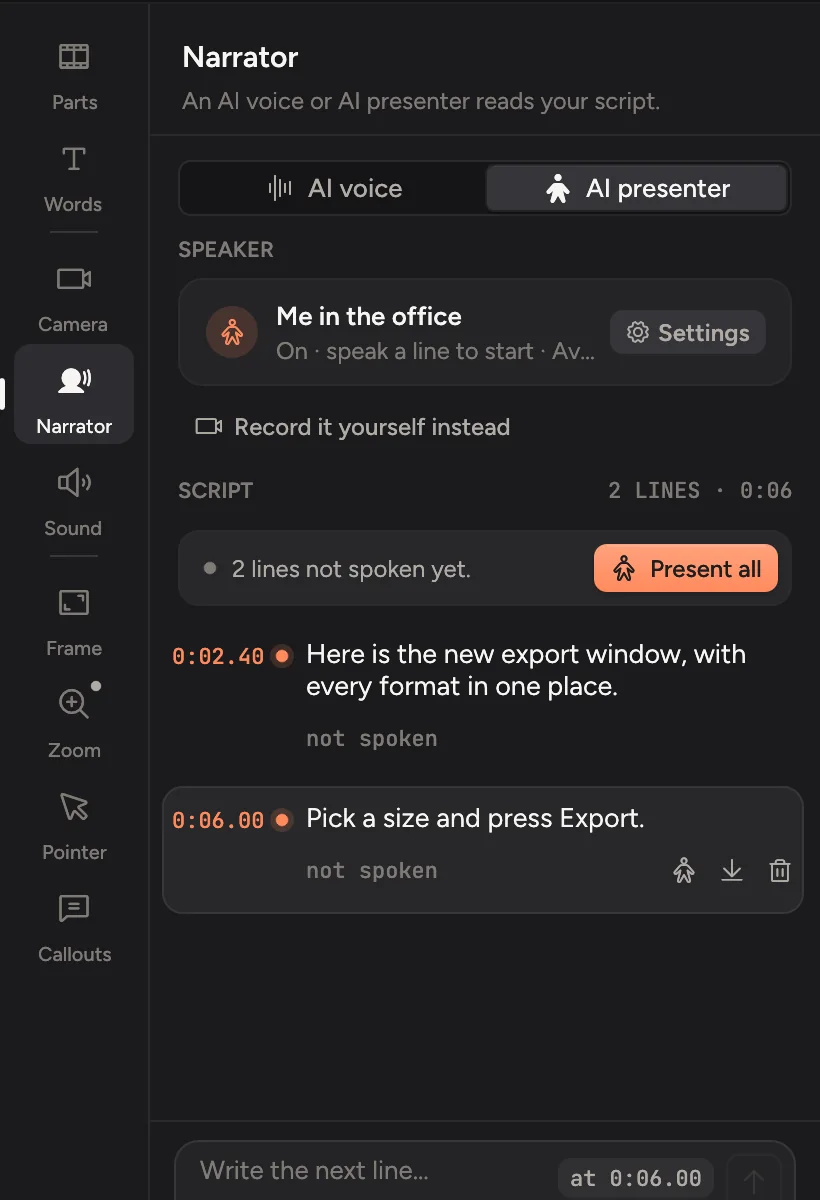
The tab reads top to bottom:
- AI voice or AI presenter: who speaks your script. See AI presenter.
- Speaker: the voice, or the presenter, that speaks. Click it to pick another. Record it yourself instead plays the video while you talk to the camera. See Record yourself.
- Script: your lines, in the order they play, with their times down the side. The heading says how many lines there are and how long they run.
- The box at the bottom, for the next line. It stays put while you scroll the script.
Add a line
- Click Narrator in the tabs on the right, or press ⌘4.
- Move the playhead to where the line should start.
- Type what the narrator says into Write the next line… at the bottom. It shows the time it will go at, such as at 0:02.40. Press ⌘↩ or click the arrow.
Or double-click the Narration lane on the timeline. A small writer opens at that moment. Type the line and press ↩.
Write the way you talk. Short sentences sound better than long ones, and a line per step of your demo keeps the voice in time with what's on screen.
Speak the script
When lines need speaking, a note above the script says so, such as 2 lines not spoken yet. Click Speak all (or Present all with the AI presenter) to speak them in one go. Lines spoken before are reused, so nothing is paid for twice. If some lines were spoken with another voice, the button says Update all.
Under each line, a small label shows its state:
| Label | Meaning |
|---|---|
| not spoken | Written, but not spoken yet. Its length on the timeline is a guess. |
| speaking… | Being made. You can keep editing. |
| Its length | Spoken. Play the video to hear it. |
| older voice | Spoken with a different voice or model than the one chosen now. Update all speaks it again. |
| failed | Something went wrong. Hover it to see why, and click Retry. See AI troubleshooting. |
Change a line
Point at a line, or click it, to see its tools.
- Reword it: click its words and type. A reworded line needs speaking again.
- Speak it alone: click its speak button.
- Move it: drag it on the Narration lane, or click Move to the playhead.
- Go to it: click its time. The time turns orange while the line plays.
- Delete it: click the bin.
Every change can be undone with ⌘Z.
Warnings you might see
- Runs into the next line: the line is longer than the gap before the next one. Shorten it, or move the next line later.
- Runs past the end of the video: move it earlier or make it shorter.
- Cut: its moment was cut from the video, so it doesn't play. Choose Move to the playhead to place it somewhere that's still in the video.
Narration and other sound
Narration is mixed with your recording. If you added music with ducking on, the music dips under each line.