Callouts, highlights and notes
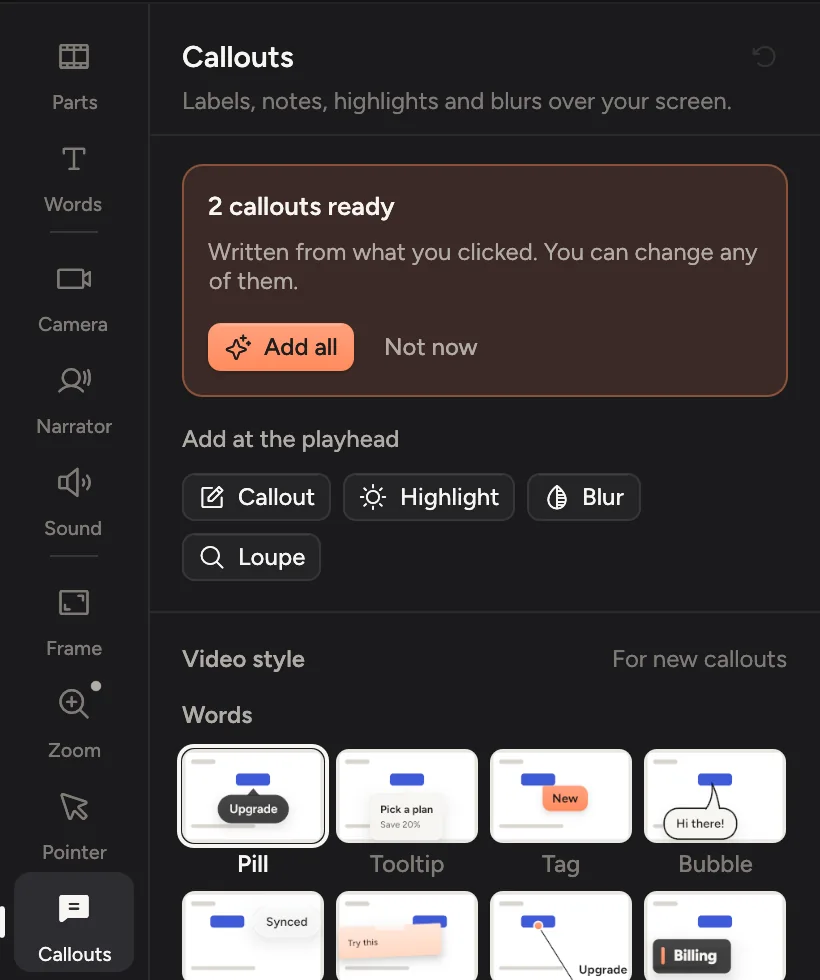
Open the Callouts tab (⌘9). Click Write callouts from my clicks and Cinemac labels each click, like “Click Publish”. To add your own words at the playhead, click Callout or press T.
Callouts are short labels on the video that tell viewers what's happening, such as Click Publish. Cinemac can write them from your clicks, and you can add your own.
Let Cinemac write them
- Click Callouts in the tabs on the right, or press ⌘9.
- Click Write callouts from my clicks.
Cinemac writes a label for each click from what you clicked, such as Click Publish or Open Settings. They're added at the moment of each click, and you can change any of them.
When a recording has new suggestions, the tab offers them: Add all adds them, Not now puts them away. Turn Suggest off under More settings › Fine-tune callouts if you'd rather not be asked.
To know what you clicked, Cinemac reads the name of the button or link under the pointer through the Accessibility permission while you record. Password fields are never read. Turn this off with Note what I click in Settings › Recording. See Privacy.
Add your own
Move the playhead to the right moment. Under Add at the playhead, click:
| Button | What it adds |
|---|---|
| Callout | Your own words anywhere on the video. Press T for the same. |
| Highlight | Dims everything but one area. See Hide private details. |
| Blur | Hides something private. See Hide private details. |
| Loupe | A round glass that magnifies one spot. See Glass loupe. |
The same things are in the Add menu in the timeline bar. On the timeline they sit on the Callouts, Blurs and Loupe rows. Drag on an empty part of the Callouts row to add one there.
Pick a style
Under Video style, click a tile to pick how new callouts look. Each tile shows the look on a made-up screen, and hovering one previews it on your video. There are 16 looks in three families:
| Family | Looks | Good for |
|---|---|---|
| Words | Pill, Tooltip, Tag, Bubble, Glass, Sticky, Leader, Banner | Saying what's happening, such as Click Publish. |
| Marks | Ring, Spotlight, Frame, Beacon | Showing where to look, with or without words. |
| Drawn on | Circle, Arrow, Underline, Marker | A hand-drawn look that draws itself in. |
Next to the tiles:
- Size: S, M, L or XL.
- Colour: Auto turns light or dark with the theme. Or pick Ink, Paper, Apricot, Glow, Midnight, or any colour.
- Theme: the colours for callouts and slides together. A slide can pick its own.
To put one style on every callout already in the video, select a callout, set it up, and click Use on every callout on its card.
Change one callout
Click a callout on the timeline, on the video, or in the list under In this video. Its card opens on the right, section by section:
- What it says: the words. Keep them short. Put a word between stars, like
Open *Billing*, to make it stand out, and keys such as ⌘K show as keycaps. Most word looks also take a quieter detail line under the words. - Style: a different look for this callout, or one of Your styles.
- Size and colour: its Size and Colour. Marks also have a Mark size.
- Points with: how it points at what it's about: None, Nub, Straight, Curved or Elbow, and the line's End: Dot, Arrow or None. For a click, Side puts it Above, Below, Left or Right, or Auto finds the spot that covers least.
- Number and timing: Number it, Comes in (Pop, Fade, Rise, Type, Draw or Cut), Shows for, and Stay until the next, which keeps it on screen until the next callout comes in.
On the video, a selected callout has a small toolbar for its style, size, colour and number. Drag the callout to place it by hand (Back beside the click puts it back), and drag its corner to make it bigger or smaller. Press ⌫ to delete it.
Save and reuse a style
On a callout's card, click Save as a style and give it a name. It's kept under Your styles in every project. Right-click one to delete it.
To give other callouts the same style quickly, select a callout and press ⌥⌘C to copy its style, then select others and press ⌥⌘V to paste it. Both are also on the callout's right-click menu.
Number the steps
Turn on Number the steps under Video style to put 1, 2, 3… on the callouts for your clicks, in order. It's handy for tutorials. Number it on a callout's card turns one on or off. Remove every callout under In this video clears them all in one undo step.
Highlights, blurs and the loupe
More settings also has:
- Fine-tune callouts: an Exact size for every callout, how heavy the words are, padding, corners, shadow, how quickly they come in, and Spotlight dim when a Spotlight is in use.
- Highlights and blurs: Corners, the Black-out colour for Redact blurs, and how blurs and highlights fade in and out.
- Loupe glass: how the glass of every loupe looks.