Settings
Click the Cinemac icon in the menu bar and choose Settings…. It has seven pages, General, Recording, AI voice, Sharing, Shortcuts, Storage and About. In the editor, press ⌘, for Editor settings.
Open Settings… from the Cinemac icon in the menu bar. Each page starts with what it's for. Less common settings sit behind More settings.
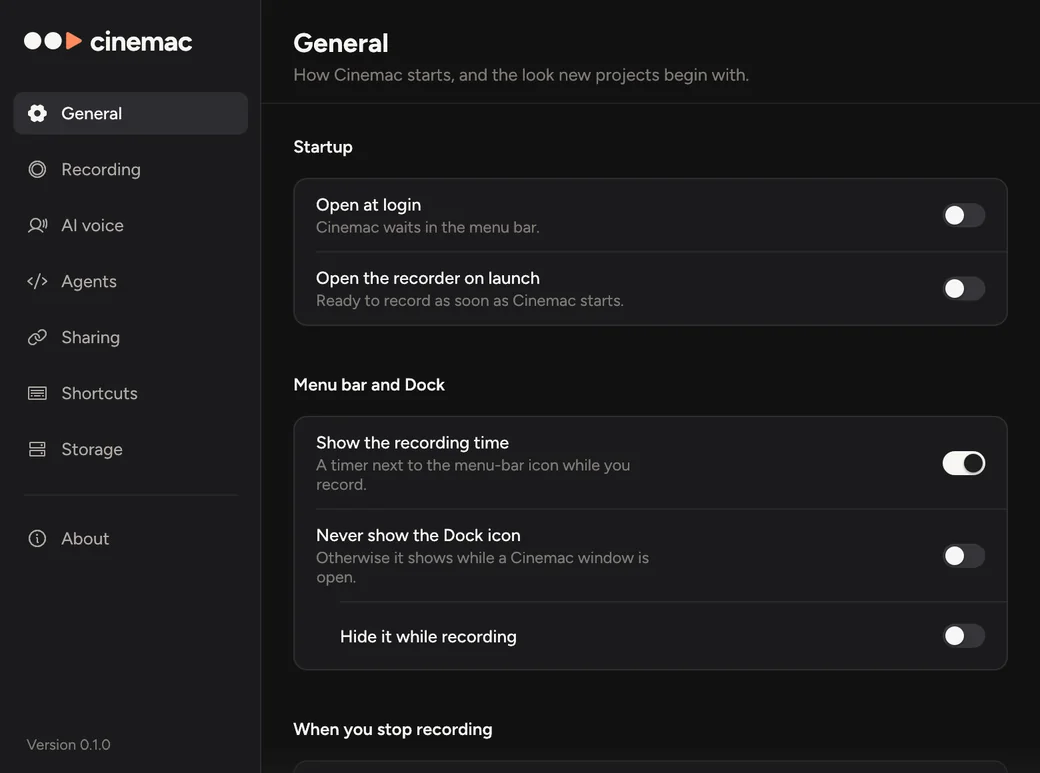
General
| Setting | What it does |
|---|---|
| Open at login, in the menu bar | Starts Cinemac when you log in. |
| Dock | Cinemac lives in the menu bar. Its Dock icon shows while a window is open. Choose Never show the Dock icon or Hide it while recording. |
| Show the recording time | Shows the time in the menu bar while you record. |
| On launch | Open the recorder when Cinemac starts. |
| New projects | The starting cursor smoothness, camera layout, Auto zoom and microphone clean-up for new recordings. Each project can change them. |
| After recording | Open the recording in the editor, or show it in Finder. |
| Quick export | Show the quick-export widget after each recording. See Quick share. |
| Setup | Permissions… opens the permissions helper. Show the welcome again replays the first-run screens. |
Recording
| Setting | What it does |
|---|---|
| Countdown | Off, or a few seconds before recording starts. |
| Codec | HEVC files are about half the size. H.264 opens everywhere. Screens bigger than 4K, like a 5K display or a 5K2K ultrawide, always record in HEVC, because H.264 can't go that big. Exports use the codec you pick when you export. |
| Frame rate | Display records at each display's refresh rate, up to 120 fps on ProMotion. Or choose 30 fps or 60 fps. |
| Hide desktop icons | Hides the files on your desktop while you record. |
| Show my camera while recording | Shows your camera preview. Its Camera shape and Quality (720p is recommended) are here too. |
| Show the control bar | The recording bar. Without it, stop and pause from the menu bar or with shortcuts. |
| Highlight | For window and area recordings: outline what's recorded, or dim everything around it. Never shows in the video. |
| Speaker notes | Your prompter: scrolling, Follow my voice, placement and text size. |
| System audio | Which apps' sound is recorded. |
| Window sizes and Saved areas | Sizes a window can be set to before recording, and areas you saved. |
| Record the characters I type | Lets the editor show what you typed on screen. When off, only shortcuts like ⌘C are recorded. |
| Note what I click | Lets Cinemac write callouts like Click Publish from what you clicked. Password fields are never read. |
| Warn me when the pointer is enlarged | Warns before recording if your Mac's pointer is set larger. |
AI voice
Your ElevenLabs and HeyGen keys and accounts. See Connect your accounts.
Agents
Lets Claude Code, Codex, Cursor and other coding agents make videos with you. The quickest way in is Connect agent, next to undo and redo at the top of the editor (or at the top right of Home): pick your agent, and Cinemac adds itself to it, restarts it if it needs to and tells you when it's connected.
| Setting | What it does |
|---|---|
| Allow coding agents | Turns agents on or off. Off, no agent can reach Cinemac. |
| Connect an agent | Connect opens the same steps as the button. Copy setup copies what to paste to add Cinemac by hand. |
| Let agents use the pointer and keyboard | Agents can click and type, only inside what they record, while they record. Move your mouse to take over. |
| Allowed agents | Agents that may use Cinemac. Remove takes one back: it asks again next time. |
Account
Sign in with your email: Cinemac sends an 8-digit code, so there's no password. Signed out, this page shows Sign in and Create account, which open the sign-in window. It opens by itself too when Cinemac starts signed out, and from Sign in when saving or exporting asks for it. Paste the code, or let Open Gmail (or your mail app's button) find the email. Cinemac remembers the email you last signed in with on this Mac; Not you? forgets it.
| Section | What it shows |
|---|---|
| Account | Your Email and Plan. Without a plan, Cinemac is a trial: you can record and edit, but not save or export. Subscribe opens the plans ($20 a month or $129 a year, on up to 2 Macs). Manage billing changes or cancels it. |
| Have a code? | Redeem a free-pass code. Nothing is charged, and when the pass ends Cinemac goes back to the trial. |
| Macs | The Macs signed in to your account. Sign out of this Mac frees a place. |
| Invite a friend | Your link to share, with Copy link. |
Sign out signs this Mac out. Your projects stay where they are.
Sharing
Your links: every video you've shared, with Copy link, Open and Stop sharing, and how much storage they use. See Share a link. Developers can add Your own share server.
Shortcuts
The global shortcuts. Click one and press new keys. A clash with macOS or another app shows right in the row, with Reset to go back. See Recording shortcuts.
Storage
| Setting | What it does |
|---|---|
| Recordings folder | Where new projects go. Movies › Cinemac unless you change it. |
| Disk usage | How much space your recordings and Cinemac's other files use, and how much is free. |
| Recent projects | Clear list empties the list in the menu bar. |
About
The version, credits, a Support link, Cinemac Help to open these guides, and Show in Finder for the settings file.
Editor settings
In the editor, press ⌘, for settings that apply to every project:
| Setting | What it does |
|---|---|
| Autosave | Saves a second after each change. ⌘S always saves. |
| New zoom level | How far new zooms go in. |
| Preview | The preview's Resolution and Size, and Playback. Lower resolution helps on older Macs. Energy saver plays at half resolution and an even 30 frames a second (25 for a 50 fps video); Automatic saves energy in Low Power Mode. Exports are always full quality. |
| Presets folder | Keep presets in another folder, such as one synced between Macs. |
| Use the last project's look | New projects start with the look of the one you edited last. |
| Quick Look | Saves a preview image so Finder shows the project's look. |
| Keep caches inside projects | Keeps waveforms and thumbnails with each project. |