Show keyboard shortcuts on screen
Open the Pointer tab (⌘8) and turn on Keys on screen. Each shortcut you pressed while recording shows as keycaps at the bottom of the video.
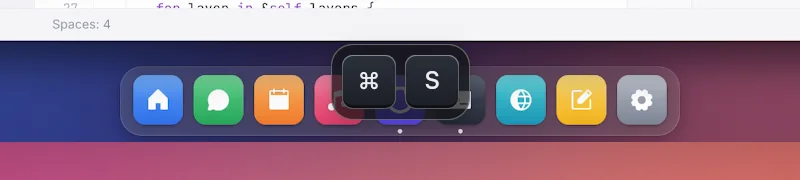
Turn it on
- Click Pointer in the tabs on the right, or press ⌘8.
- Turn on Keys on screen.
Every key combination you pressed while recording, such as ⌘C or ⇧⌘P, shows for a moment as keycaps. Repeats are counted, like ⌘Z ×3.
Under More settings › Keys on screen, turn on Typing too to also show plain typing, as a bubble of the text you typed.
Where and how
Right under the switch:
- Where: click a spot on the grid, such as bottom centre.
- Look: Dark or Light.
More settings › Keys on screen has the rest: Size, Margin from the edge of the frame, Hold (how long a shortcut stays), Fade in, Fade out, and Group (how close repeats must be to count up).
Hide one shortcut
More settings › Keys on screen › Recorded shortcuts lists every combination in the recording. Click the eye next to one to keep it out of the video, such as a shortcut that would reveal something private.
Each press shows on the timeline's Shortcuts row. Click one to hide or show just that press.
Nothing shows?
Keys are only recorded with the Input Monitoring permission. Without it, the tab says No key presses were recorded. See the optional permissions. Typing is only recorded when Record the characters I type is on in Settings › Recording.