Add an AI presenter
In the Narrator tab (⌘4) choose AI presenter, pick an avatar and a HeyGen voice, choose the Presenter model, then write lines and click Present all. The avatar appears in the camera bubble and speaks each line.
The AI presenter puts a HeyGen avatar in the camera bubble. It says your script in a HeyGen voice, with its lips in time.
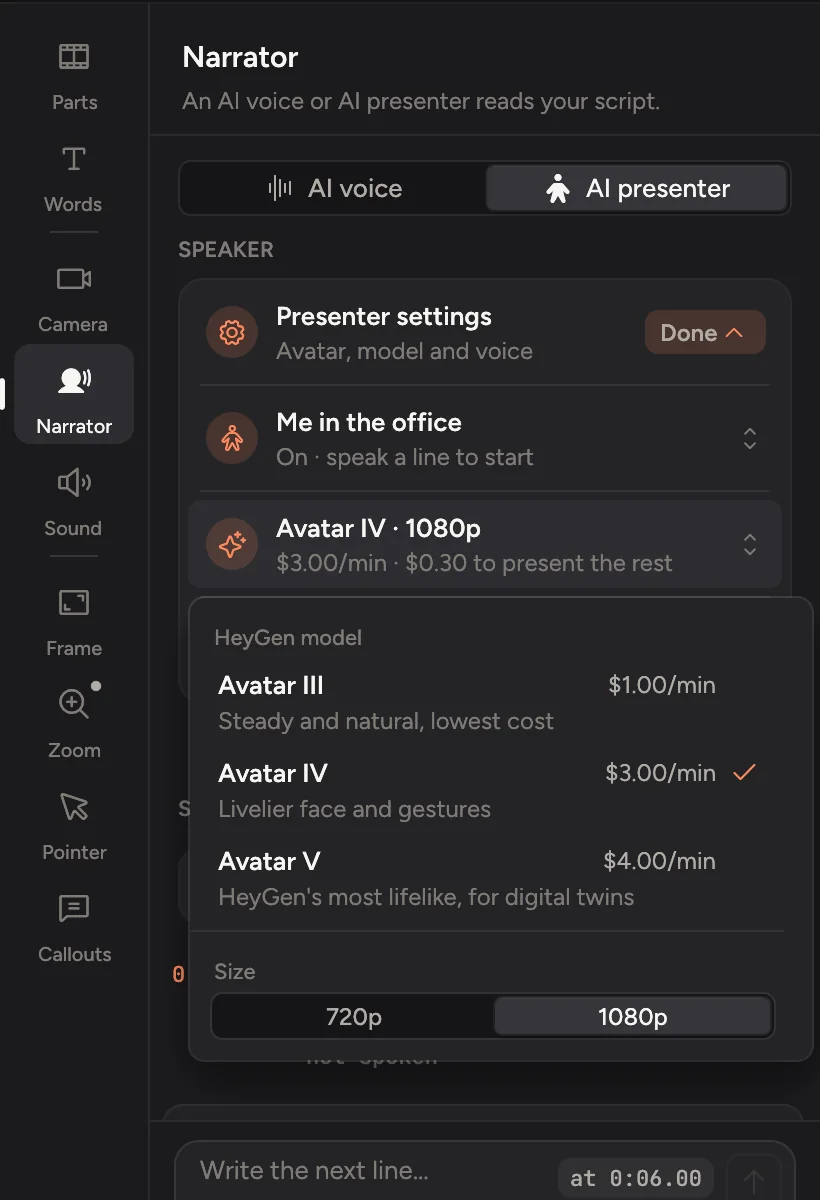
Set it up
- Click Narrator in the tabs on the right (⌘4), and choose AI presenter at the top.
- Under Speaker, click the avatar row and pick an avatar. Paste your HeyGen key here if you haven't added it. Your avatars are yours on HeyGen, including digital twins. HeyGen avatars are stock ones.
- Click the voice row and pick the voice the avatar speaks with. A clone of your own voice works here too.
- Choose the Presenter model (below).
Once they're chosen, the avatar, model and voice fold into one row under Speaker, so the script has room. It shows the avatar's name and how it's doing, such as Ready · 3 lines. Click Settings on that row to change them, and Done to fold them away again.
For a presenter that looks like you, click Make your own avatar on HeyGen. A short video of you becomes an avatar of you, and it shows up in the list once HeyGen has made it.
Choose a model
The model decides how lifelike the avatar is and what it costs on HeyGen.
| Model | What you get | Price on HeyGen |
|---|---|---|
| Avatar III | Steady and natural, the lowest cost | about $1.00 per minute |
| Avatar IV | A livelier face and gestures | about $3.00 per minute |
| Avatar V | HeyGen's most lifelike, for digital twins | about $4.00 per minute |
Size can be 720p, 1080p (the default) or 4K. 4K is offered only with Avatar III and a studio avatar or digital twin.
The model row shows the price per minute and what it costs to present the lines that aren't presented yet, before you spend anything.
Present the script
Write your lines (see Write a narration script) and click Present all above the script. Each line is spoken first, then HeyGen renders the avatar saying it. Rendering takes a few minutes. The row shows how long it has been rendering.
To present one line, point at it and click its present button. A spoken line without a clip offers Make.
Play the video to see the avatar in the camera bubble. It moves and resizes like your own camera, and the camera layouts work with it.
If you change the model, lines made with the old one offer Redo in the new model, and the model list offers to redo them all. The current clips stay until the new ones are ready.
The presenter is hidden when the camera layout is set to Screen only. Choose a layout with the camera to see it.