Choose a background
Open the Frame tab (⌘6) and click a tile under Background. The gallery has ready-made backgrounds. Gradient, Color and Image let you make your own.
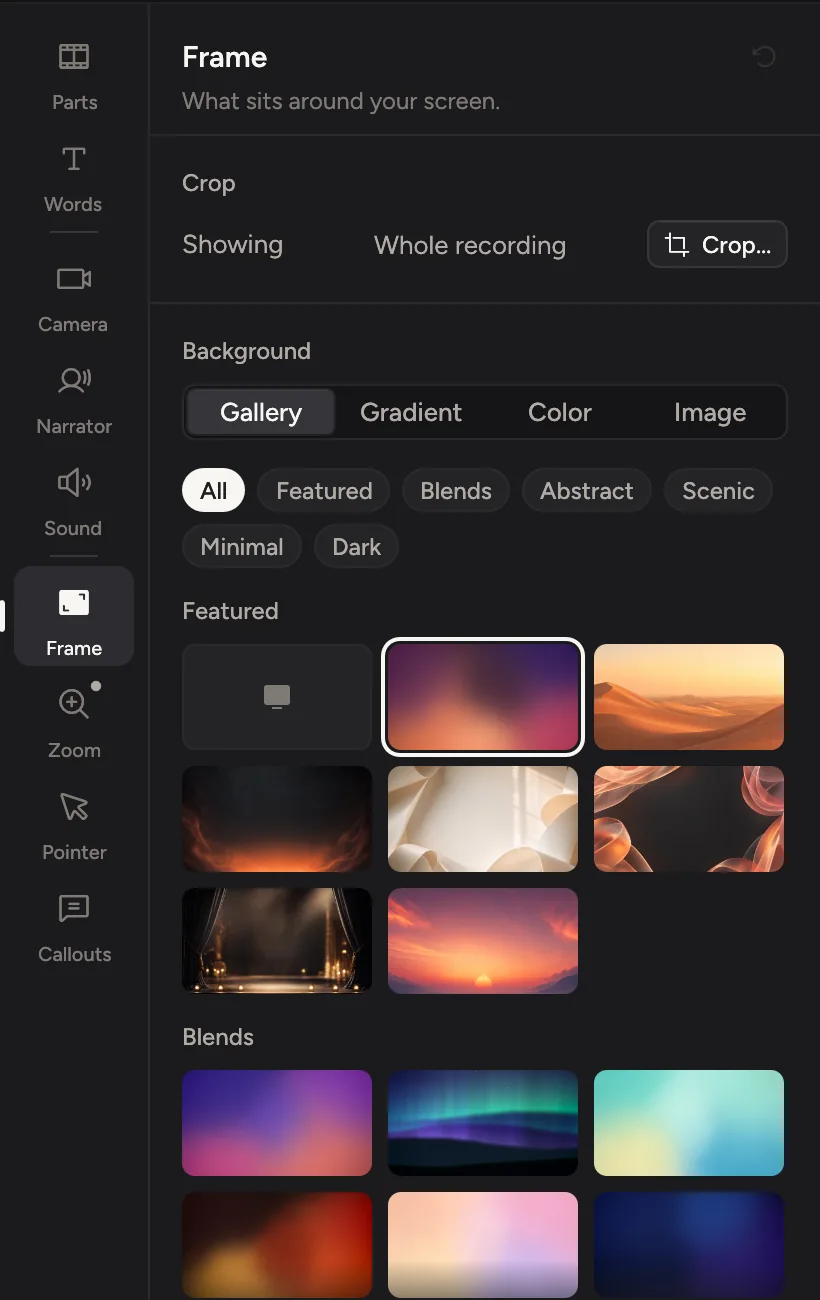
Pick a background
- Click Frame in the tabs on the right, or press ⌘6.
- Under Background, click a tile in the Gallery. Hover a tile to see it on the video first. Click it to keep it.
The gallery is a library of backgrounds made for Cinemac, grouped as Featured, Blends, Abstract, Scenic, Minimal and Dark. Click the chips above the tiles to show one group.
The first tile uses your Mac's current desktop picture. It is read when you export and never copied into the project.
Make your own
- Gradient: start from one of the ready-made gradients, then change it in the bar below. Click a colour stop to change its colour, drag it to move it, or click the bar to add one (up to eight). Turn the dial to set the angle.
- Color: one plain colour. Pick a swatch or set your own, such as a brand colour.
- Image: any picture from your Mac. Click Choose image….
Soften it
When the background is a picture, open More settings › Background blur and drag Amount to soften it, so your screen stands out more. It's most useful with photos.
Like a background? Save it with the rest of your look under Presets in the top bar, and use it on every video.
Undo a change
Press ⌘Z, or click the reset arrow at the top right of the tab to put every Frame setting back to its default.